Settings
Every switch eSPi has, in one place. Most of the time the defaults are the SP-1200 itself. This chapter tells you what each row does when you want something else.
Open Settings
Click the gear in the header. In the standalone you can also choose Options › Settings..., and in phone landscape the gear sits beside Master Control.
- Settings opens full screen, with the tabs down the left. It reopens on the tab you used last.
- Close it with the X or Esc.
- Changes take effect and save immediately. There is no Apply button.
Some tabs appear only in certain builds: Macros only in the plugin, and Storage only in the iOS app and AUv3.
Project settings and machine settings
Settings come in two kinds. Project settings shape the sound of a beat, so they are saved inside the project and come back when you reopen it, on any machine. Machine settings are about your setup and your taste, so they stay with your computer or device.
When you open a project that carries its own sound settings, a blue FROM PROJECT badge appears at the top of Settings. The project's values are in use instead of yours. Your own come back when the project closes.
| Saved with the project | Kept on your machine |
|---|---|
| Engine sound settings: Input and Output Stage (with all sub-switches), Engine Bitrate, Engine Sample Rate, 7bit Semitones, Zero-Crossing Snap, DC Removal, Sequencer Resolution, SP-1200 Mode, Routed Groups Stay in Main. Plus Preview Volume (Library tab), all Metronome settings, Pad Mapping, Swing Resolution and Group Routing. | Audio devices, Export settings, Stock Samples, Auto-Preview on Select, Lock Pitch on Record, MIDI output and clock settings, controller mappings, Appearance and Reverse Crossfader. |
Audio
Where sound comes in and goes out. In the standalone you pick devices here. In a plugin the device rows are replaced by Host controls audio I/O. The device, sample rate, and buffer size are set by your DAW.
| Setting | Options | Default | What it does |
|---|---|---|---|
| Output Standalone | System Default, or a specific device | System Default | The audio output device. System Default follows your headphones or AirPods as you plug and unplug them. |
| Main Output Standalone | Out 1-2, Out 3-4 … | Out 1-2 | Moves the main mix, metronome included, to any stereo pair. Only shown on interfaces with 4 or more outputs. On a 2-output device the row hides, and your choice returns when you switch back. |
| Input Standalone | System Default, then every input device with each of its channels | System Default | The input used for live sampling. Each device is listed by stereo pair (Device - In 1-2) and by single mono channel (Device - In 3), with the interface's own channel names in brackets when it has them. Live sampling records exactly the pair or channel you choose. See Sample from input. |
| Sample Rate Standalone | Rates your device supports | — | The audio device's rate. Not the same as Engine Sample Rate, which sets eSPi's sampling character. |
| Buffer Size Standalone | Shown as N samples (x.x ms) | — | Smaller buffers feel tighter under your fingers; larger ones are safer on a busy computer. |
| Group Routing | One dropdown per mixer group in use: stereo pairs Out 1-2 (Main), Out 3-4 …, then mono Out 1 … | Main | Sends each group to its own output. A mono output sums the group to mono. If the chosen output isn't on the current device, the group plays on Main and your choice returns with the device. Saved with the project. |
The standalone opens up to 64 outputs. For multi-output use in a DAW, see Route groups to separate outputs.
Engine
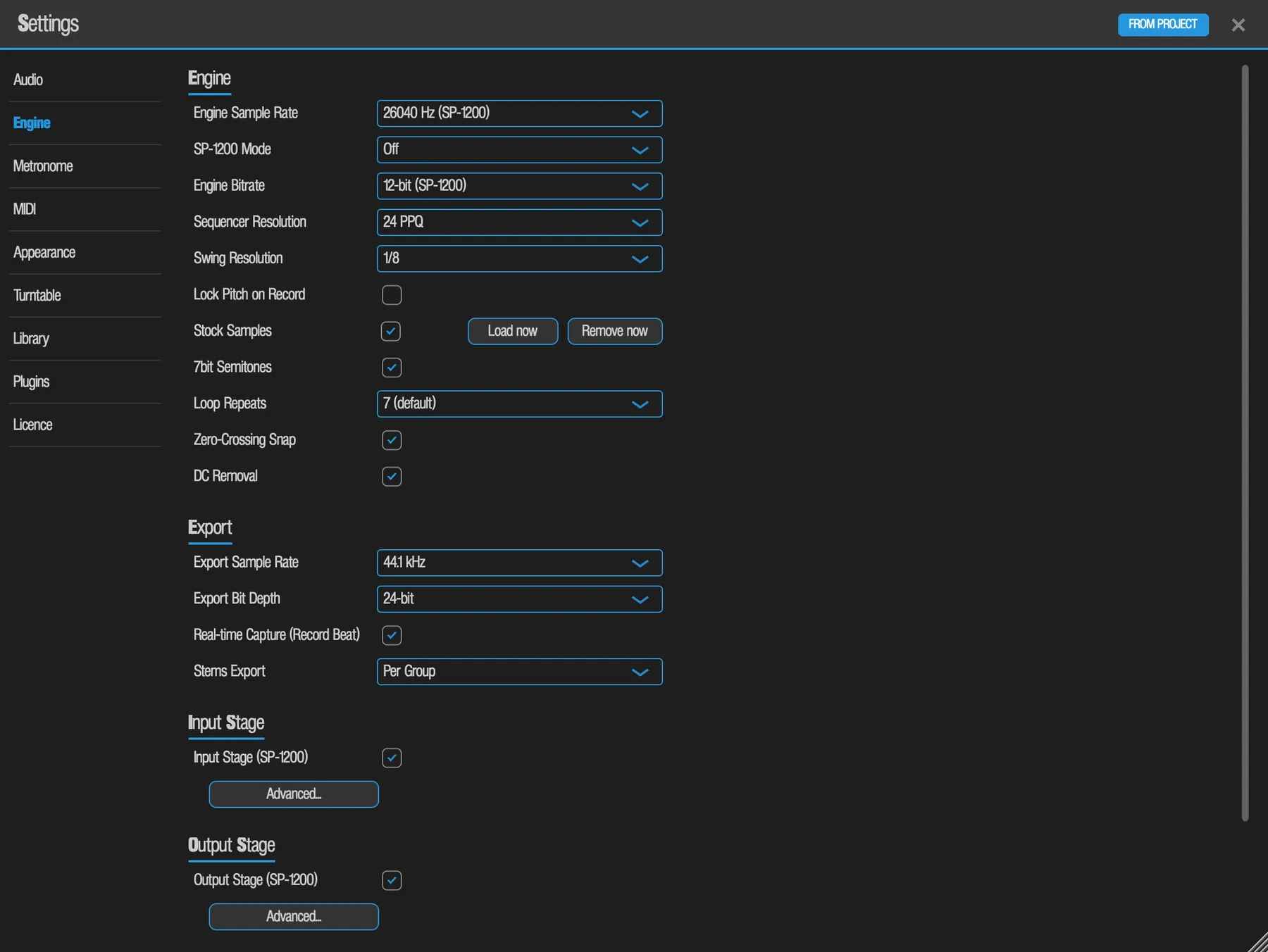
The heart of eSPi's sound. These rows decide how much SP-1200 you get, from the full 12-bit, 26.04 kHz grit to nearly clean. See The Sound Engine for what each stage does to the sound.
Engine
| Setting | Options / range | Default | What it does |
|---|---|---|---|
| Engine Sample Rate | 13020 Hz, 19530 Hz, 26040 Hz (SP-1200), 27050 Hz (SP-12), 32000 Hz, 44100 Hz, or type any rate from 8000 to 48000 | 26040 Hz (SP-1200) | The rate sounds are sampled at. Lower is darker and grittier. Applies to sounds loaded from now on, not ones already on pads. |
| SP-1200 Mode | Off, Original, Reissue | Off | Emulates the hardware's memory budget and limits. Turning it on starts a new project. See SP-1200 Mode. |
| Engine Bitrate | 6-bit, 8-bit, 12-bit (SP-1200), 16-bit, 24-bit | 12-bit (SP-1200) | Bit depth of the converter. Lower is crunchier; 16 and 24-bit are nearly clean. The stage sub-options only work at 12-bit. Applies to future loads. |
| Sequencer Resolution | 24 PPQ, 48 PPQ, 96 PPQ | 24 PPQ | Timing resolution of the sequencer. Sets the HiRes Auto-Correct and grid step, the fine-nudge step and the Live Erase window. Locked to 24 in SP-1200 Mode. |
| Swing Resolution | 1/8, 1/16 | 1/8 | Which note value swing shifts. A new project starts at 1/8. |
| Lock Pitch on Record | On / Off | Off | Each recorded note keeps the pad's semitone tune from the moment you played it, so retuning the pad later doesn't move it. Always on in SP-1200 Mode. A machine preference. |
| Stock Samples | On / Off, plus Load now and Remove now | On | Fills empty pads with the 32 stock sounds at startup and on New Project. Load now fills all empty pads. Remove now clears every pad holding a stock sound, after a confirm, with no undo. Unavailable in SP-1200 Mode. |
| 7bit Semitones | On / Off | On | Pitches pads using the SP-1200's 7-bit pitch steps. See The Sound Engine. |
| Loop Repeats | 1 to 16 | 7 | How many times a pad's loop section plays before the sound stops. The fade-out stretches or shrinks with the count. A machine preference. |
| Zero-Crossing Snap | On / Off | On | Snaps edited start and end points to zero crossings to prevent clicks. |
| DC Removal | On / Off | On | Removes DC offset. |
Export
| Setting | Options | Default | What it does |
|---|---|---|---|
| Export Sample Rate | 44.1 kHz, 48 kHz | 44.1 kHz | Sample rate of exported WAV files. |
| Export Bit Depth | 16-bit, 24-bit | 24-bit | Bit depth of exported WAV files. |
| Real-time Capture (Record Beat) | On / Off | On | On: Record Beat records what you hear while you press Play and perform. Off: the segment or song is rendered offline with a progress bar. See Export audio. |
| Stems Export | Per Group, Per Pad | Per Group | Per Group: one stem per mixer group. Per Pad: one stem per pad that plays, taken after the pad's own fader. See Export Stems. |
Input Stage and Output Stage
Each stage has one master switch, on by default, and an Advanced... button with sub-switches. Turning a master switch on turns all its sub-switches on except the phase-invert ones; turning it off turns them all off. The Output Stage and the converter-chip sub-options only work at 12-bit and are greyed out at other bit depths.
| Setting | Default | Sub-switches under Advanced... |
|---|---|---|
| Input Stage (SP-1200) | On | Saturation, Slew Limiting, Preamp Noise, HF Droop, Phase Inversion (off by default), Anti-Alias Filter, Sample & Hold, DAC Non-Linearity, Carry Glitch, LM311 Comparator, Settling, Noise Floor, Clock Bleed. |
| Output Stage (SP-1200) | On | Saturation, Slew Limiting, DAC Nonlinearity (INL), VCA Zipper (8-bit), Mix Phase Invert (180 deg) (off by default), Low-Mid Voicing, Presence Dip (10k). |
Routing
| Setting | Options | Default | What it does |
|---|---|---|---|
| Routed Groups Stay in Main | On / Off | On | On: a group sent to its own output is still heard in the main mix. Off: it plays only on its own output, for clean separated stems. |
| Mixer Order | EQ > Comp, Comp > EQ | EQ > Comp | The order of the EQ and the compressor on every mixer strip: pads, groups and master. Comp > EQ compresses first, then EQs. See the strip controls. |
Metronome
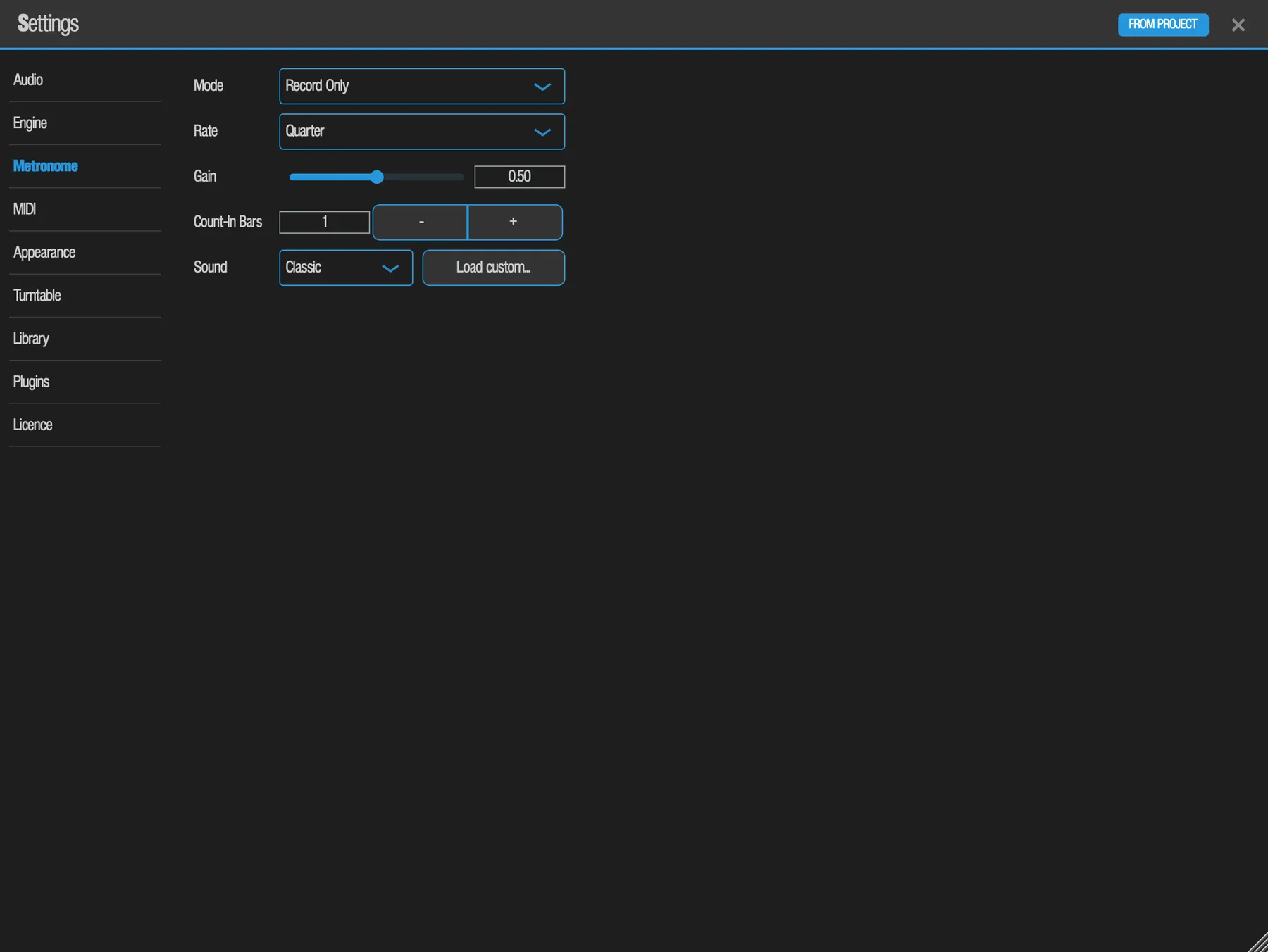
The click that keeps you honest. The first beat of each bar is accented, and the click is never recorded or exported. The faceplate Metronome Volume knob also sets the click level. See Metronome and count-in.
| Setting | Options / range | Default | What it does |
|---|---|---|---|
| Mode | Off, Record Only, Record + Playback | Record Only | Record Only clicks during the count-in and while recording. Record + Playback clicks whenever the transport runs. |
| Rate | Half, Quarter, Eighth, Sixteenth | Quarter | How often it clicks. |
| Gain | 0–1 | 0.50 | Click level. |
| Count-In Bars | 0–8, with − / + buttons | 1 | Bars of count-in before recording starts. The same value as the LCD Count-In screen. Plain playback never counts in. |
| Sound | Classic, Sine, Square, Noise, Custom..., plus Load custom... | Classic | The click sound. Load custom... loads your own. |
| Preview | Button | - | Plays one bar of the selected click at the metronome level, accent first, whatever the Mode. |
MIDI
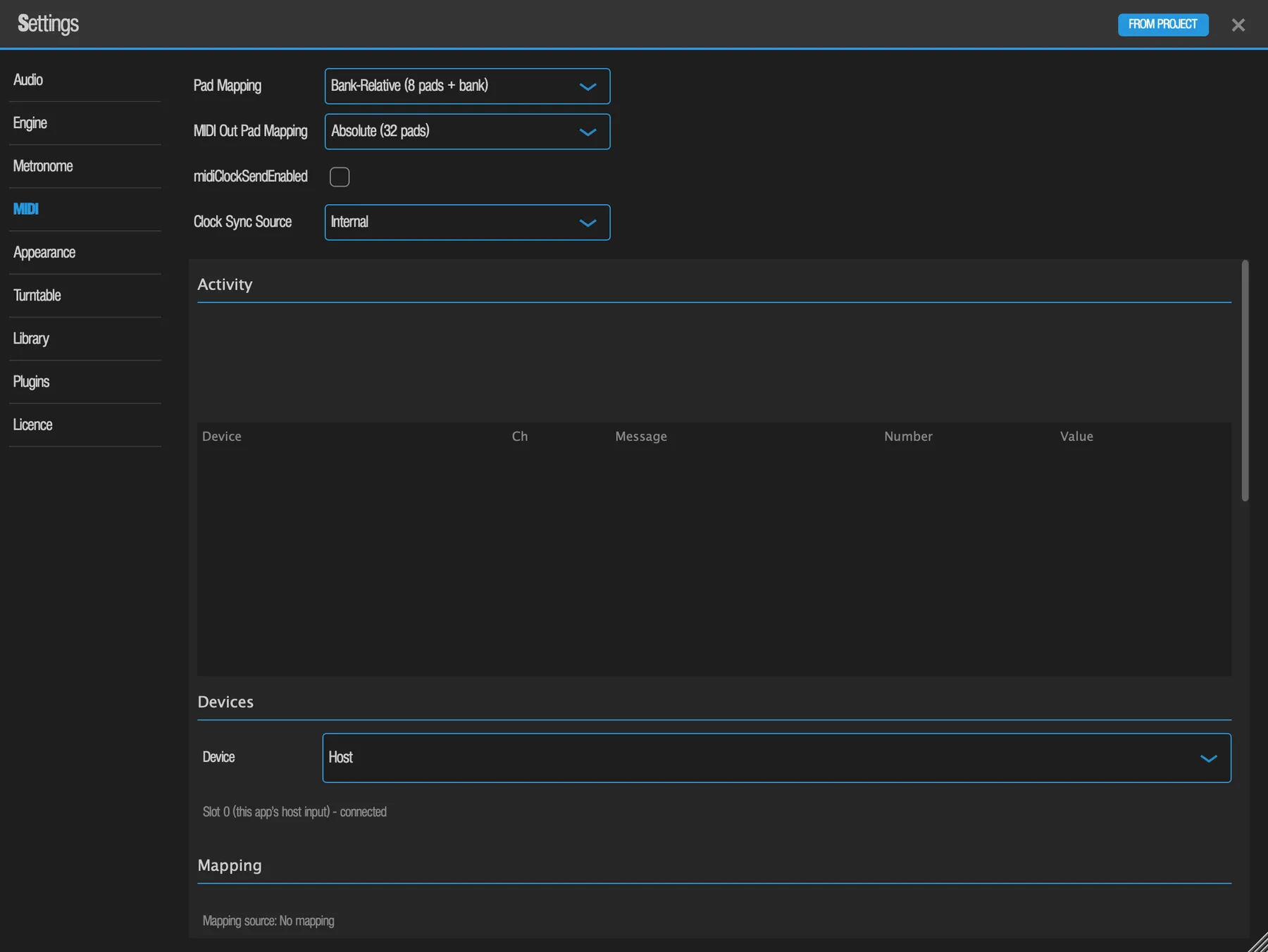
Everything about notes, clock and controllers. The top rows are simple settings; below them sit the activity monitor and the per-device panels. MIDI & Controllers covers the workflows.
Top rows
| Setting | Options | Default | What it does |
|---|---|---|---|
| Pad Mapping | Bank-Relative (8 pads + bank), Absolute (32 pads) | Bank-Relative | Which incoming notes play pads. Bank-Relative: notes 36–43 play the 8 pads of the current bank. Absolute: notes 36–67 play A1 to D8 directly. |
| MIDI Out Pad Mapping | Absolute (32 pads), Bank-Relative (8 pads + bank) | Absolute | Which notes eSPi sends when pads play. Absolute: A1 sends 36 through D8 on 67. Bank-Relative: A1, B1, C1 and D1 all send 36, and so on. A pad's own MIDI Note setting overrides this. |
| Send MIDI clock (checkbox) | On / Off | Off | Sends MIDI clock with Start, Stop, Continue and Song Position. Same as Send Clk on the MIDI Sync screen. See MIDI clock. |
| Clock Sync Source | Internal, External (follow MIDI clock) | Internal | Whether eSPi runs on its own clock or follows an external master. Only has an effect in the standalone; a plugin always follows the host. |
Activity
A live MIDI monitor, newest message first, with columns Device, Ch, Message, Number and Value. Use it to check that a controller is sending, and on which channel. A status line tells you if no device is connected, or if one is connected but nothing has arrived. If MIDI was ever dropped, a diagnostics line counts it since launch.
Devices
The Device dropdown lists every known input as Slot N - connected or not connected. Host is slot 0. Offline devices stay listed with their settings. The sections below apply to the device selected here. In a plugin, Host is the only entry, because the DAW forwards MIDI to the plugin.
Mapping
Shows the Mapping source (Your saved mapping, Built-in mapping or No mapping) and one row per binding: the message, such as Ch 3 CC 74, the control it drives, a mode, Invert, Pickup and Delete.
| Mode | Use it for |
|---|---|
| Absolute 7-bit | A normal CC knob or fader. |
| Absolute 14-bit | High-resolution CC pairs: MSB on CC n, LSB on CC n+32. Falls back to 7-bit if only the MSB arrives. |
| Relative | Endless encoders. Two's complement by default. |
| Toggle | Each press flips the control on or off. |
| Momentary | On while held, off on release. |
| Trigger | Fires once per press. |
Pickup (soft takeover) is off by default: the control jumps to your hardware's value. Turn it on and a mismatched fader does nothing until it crosses the on-screen value.
- Save
- Writes the mapping file. MIDI Learn already saves automatically, so you rarely need it.
- Load
- Reloads the file. A file made for a different device is refused with an explanation.
- Clear
- Removes the live mapping only. The saved file stays.
- Reset to Built-in
- Returns to the built-in mapping after a confirm. This permanently deletes your saved file; undo restores the live mapping but not the file.
Load, Clear, Reset, mode changes and deletes can all be undone.
Routing and Thru
Sixteen rows, Ch 1 to Ch 16, for the selected device. Each edit is one undo step.
| Column | Options | Default | What it does |
|---|---|---|---|
| Route | Pads + Controls, Pads, Controls, Instrument, Off | Pads + Controls | Pads + Controls: notes play pads and everything can drive mapped controls. Pads: notes only. Controls: mapped controls only. Instrument: feeds the instrument plugin hosted on a pad Desktop. Off: ignored. |
| Target pad | None, A1 … D8 | None | The pad whose hosted instrument receives the channel. Active only for Instrument. See Hosting Plugins. |
| Notes / Ctrl / Clock | Checkboxes | Off | MIDI Thru: echoes those kinds of message to the MIDI output. Works even with the route set to Off. SysEx is never passed through. Clock thru covers clock, start, stop, continue and song position. |
Unticking thru, changing a route, unplugging or closing the output releases any notes thru was holding. A route change does this for the whole port. Thru isn't offered on the last device slot, because unrecognised devices also arrive there.
MIDI Output Standalone
| Setting | Options | Default | What it does |
|---|---|---|---|
| Send to | None (closed), or any MIDI output | None (closed) | Where pad notes, clock and thru go. eSPi never opens an output by itself. The choice survives a restart and reopens when a missing device comes back. Close Output closes it. |
In a plugin this section reads Your host carries MIDI out of this plugin. On phones and tablets the tab works the same way and scrolls as one page.
Appearance
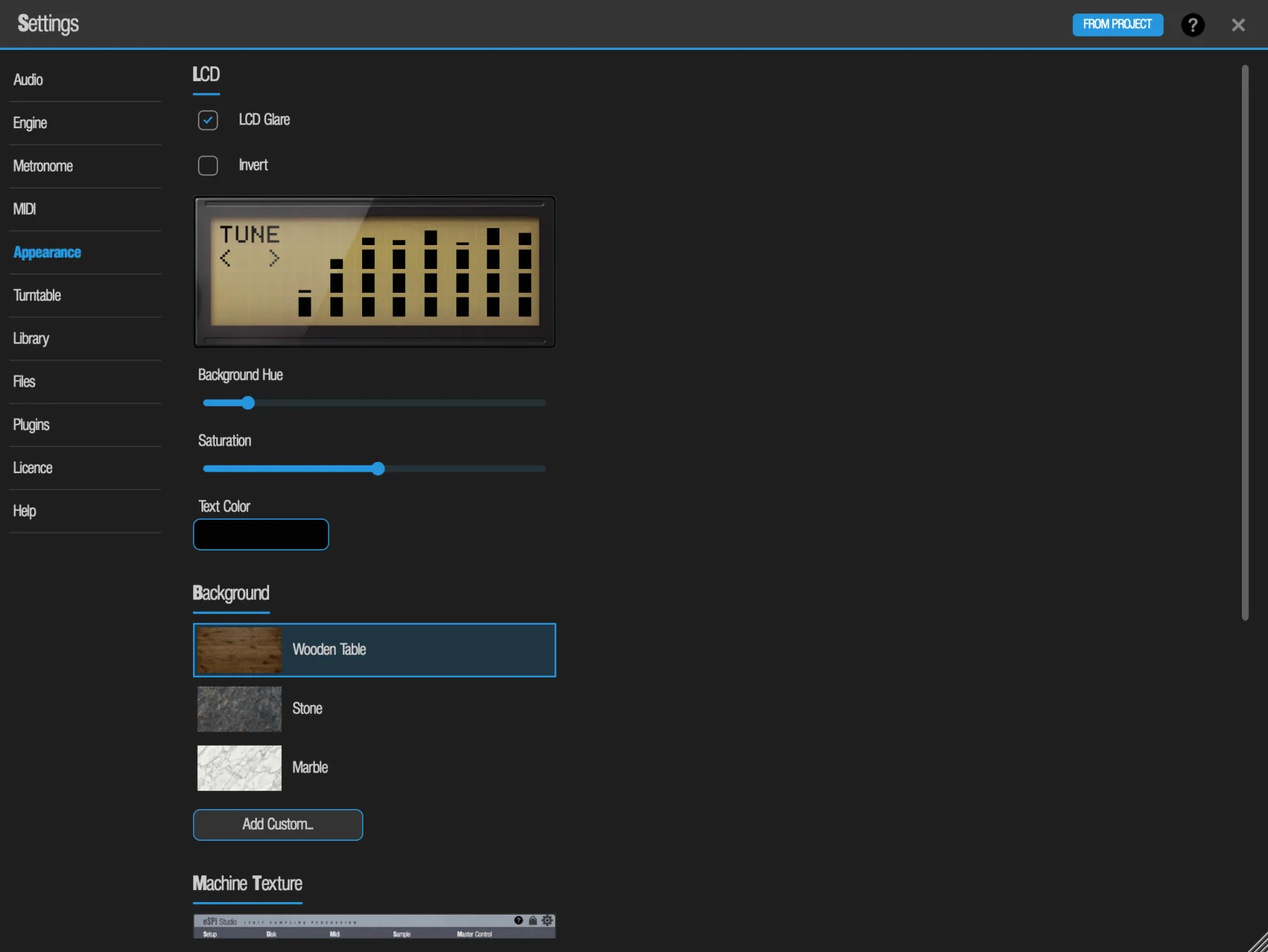
Make the machine yours: tint the LCD and pick the surface it sits on. Appearance is a machine setting, so it never changes when you open someone else's project.
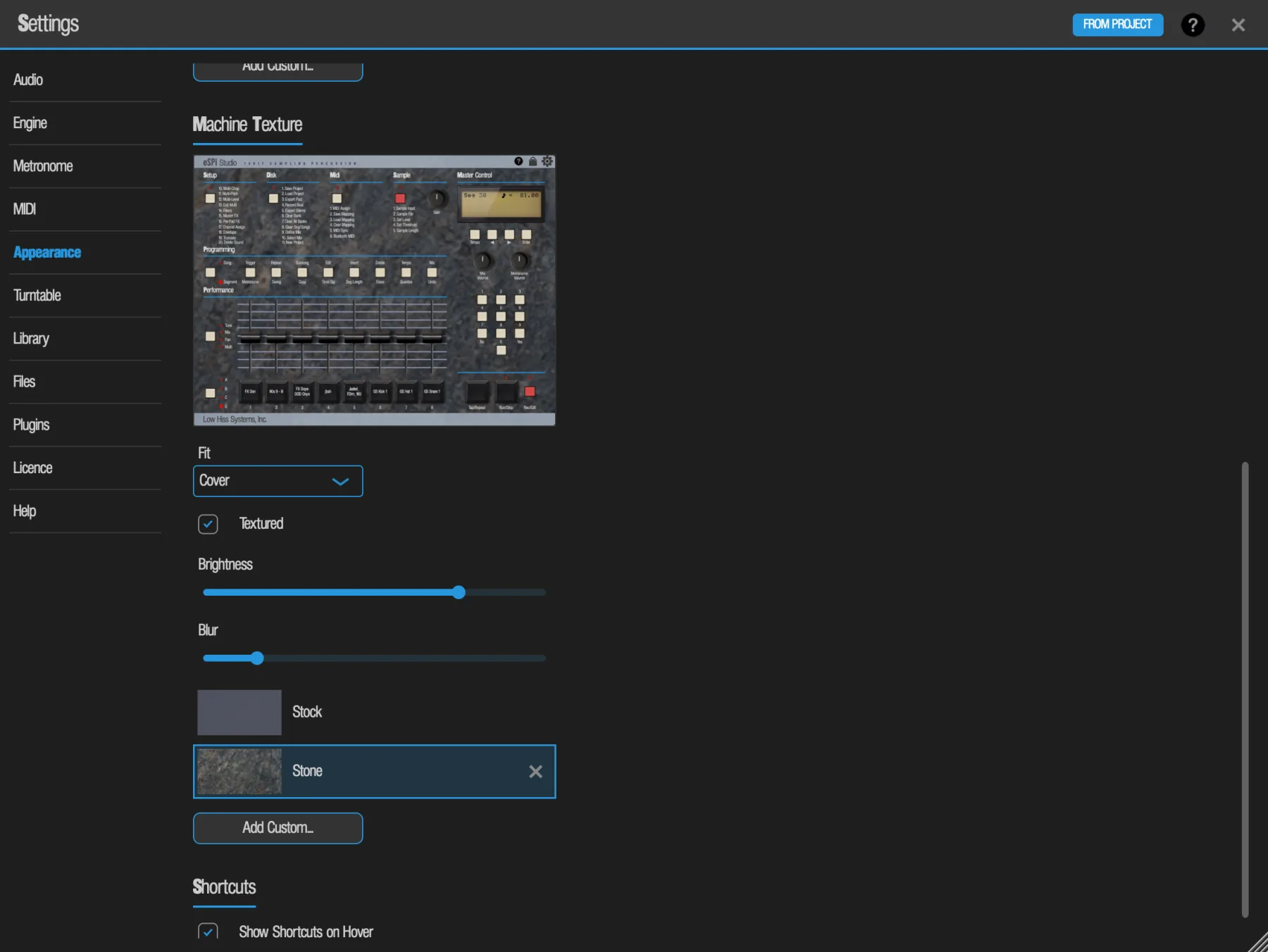
| Setting | Options / range | Default | What it does |
|---|---|---|---|
| LCD Glare | On / Off | On | The reflection across the LCD glass. |
| Invert | On / Off | Off | Light characters on a dark screen. |
| Background Hue | Slider | About 44° (amber) | The LCD backlight colour. The preview updates as you drag. |
| Saturation | 0–200% | 102% | How strong the backlight colour is. |
| Text Color | Colour picker | Black | The colour of the LCD characters. |
| Background | Wooden Table, Stone, Marble, custom | Wooden Table | The surface behind the machine. Add Custom... takes a JPG or PNG up to 64 MB, asks for a name, and scales large images down to 3840 px. Custom backgrounds have an X to delete them. |
| Machine Texture | Stock, custom | Stock | The surface of the machine body (between the header and the footer). Add Custom... works like Background. A small machine preview shows every change. For a custom texture: Fit (Cover fills the body, Tile repeats the picture at its own size; default Cover), Textured (lays the stock grain lightly over the picture; default on), Brightness (darkens; default 100%) and Blur (softens; default 0). eSPi remembers these for each texture. Deleting the texture in use goes back to Stock. |
| Button Color | Colour picker | Stock (cream) | The colour of the cream buttons on the machine. The plastic texture and shading stay. Other views (sequencer, song, mixer, waveform editor, effects rack) keep the original look. |
| Red Button Color | Colour picker | Stock (red) | The colour of the red buttons on the machine, set separately from Button Color. Same rules as Button Color. |
| Pad Color | Colour picker | Stock (black) | The colour of the pads on the machine. The rubber texture stays. Reset to Default puts all three colours back to stock. The Machine Texture preview shows the three colours as you pick them. |
| Show Shortcuts on Hover | On / Off | On | Desktop only, under a Shortcuts heading. Shows the computer key on a pad or button while the mouse rests on it. Turn it off to hide those hints; the keys still work. |
| Hide locked views | On / Off | Off | eSPi Essentials only, under a Sidebar heading. Hides the sidebar with its locked buttons and puts Library and Waveform Editor in the footer (in a plugin only Waveform Editor, since Library is Standalone-only). It has no effect on eSPi Studio, so the full sidebar comes back after an upgrade. See The sidebar. |
Turntable
| Setting | Options | Default | What it does |
|---|---|---|---|
| Reverse Crossfader | On / Off | Off | Reverses the crossfader direction, "hamster" style, for scratch DJs who cut that way. A machine setting. See The Turntable. |
Library
How the Sample Library auditions sounds while you browse.
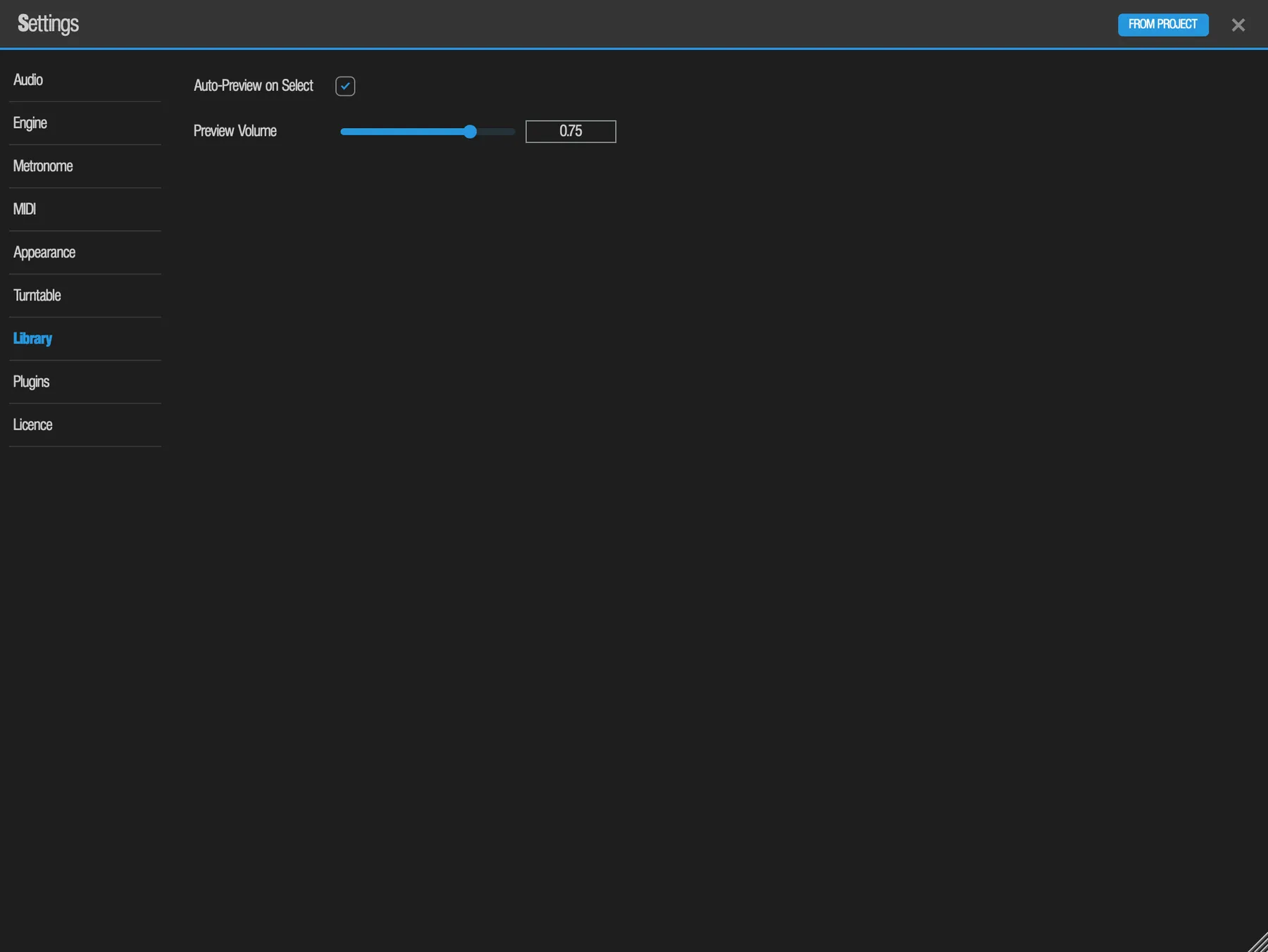
| Setting | Options / range | Default | What it does |
|---|---|---|---|
| Auto-Preview on Select | On / Off | On | Plays a sample as soon as you select it in the Library. A machine setting. |
| Preview Volume | 0–1 | 1.00 | Level of Library previews. Changes live, even while a preview is playing. Saved with the project like the Engine sound settings. |
Files Desktop
Where eSPi keeps your work on this computer. The eSPi folder holds Projects and Exports. It is in your Documents folder until you move it. The line at the top shows the folder in use.
| Setting | Options | Default | What it does |
|---|---|---|---|
| eSPi Folder Location | Change... | Documents | Choose the folder the eSPi folder goes in, for example another drive. eSPi creates eSPi/Projects and eSPi/Exports there the first time it saves or exports. Save, the Disk 2 project list, Open Recent and every export use the new place straight away. A machine setting, shared by the app and the plugins. |
| Default Location | Use Documents | Puts the eSPi folder back in your Documents folder. |
Plugins
Tell eSPi which third-party effects and instruments you own. Scanning runs in a separate process, so a plugin that crashes or hangs is set aside and the scan carries on. See Hosting Plugins for using them. The tab is eSPi Studio only: eSPi Essentials does not show it.
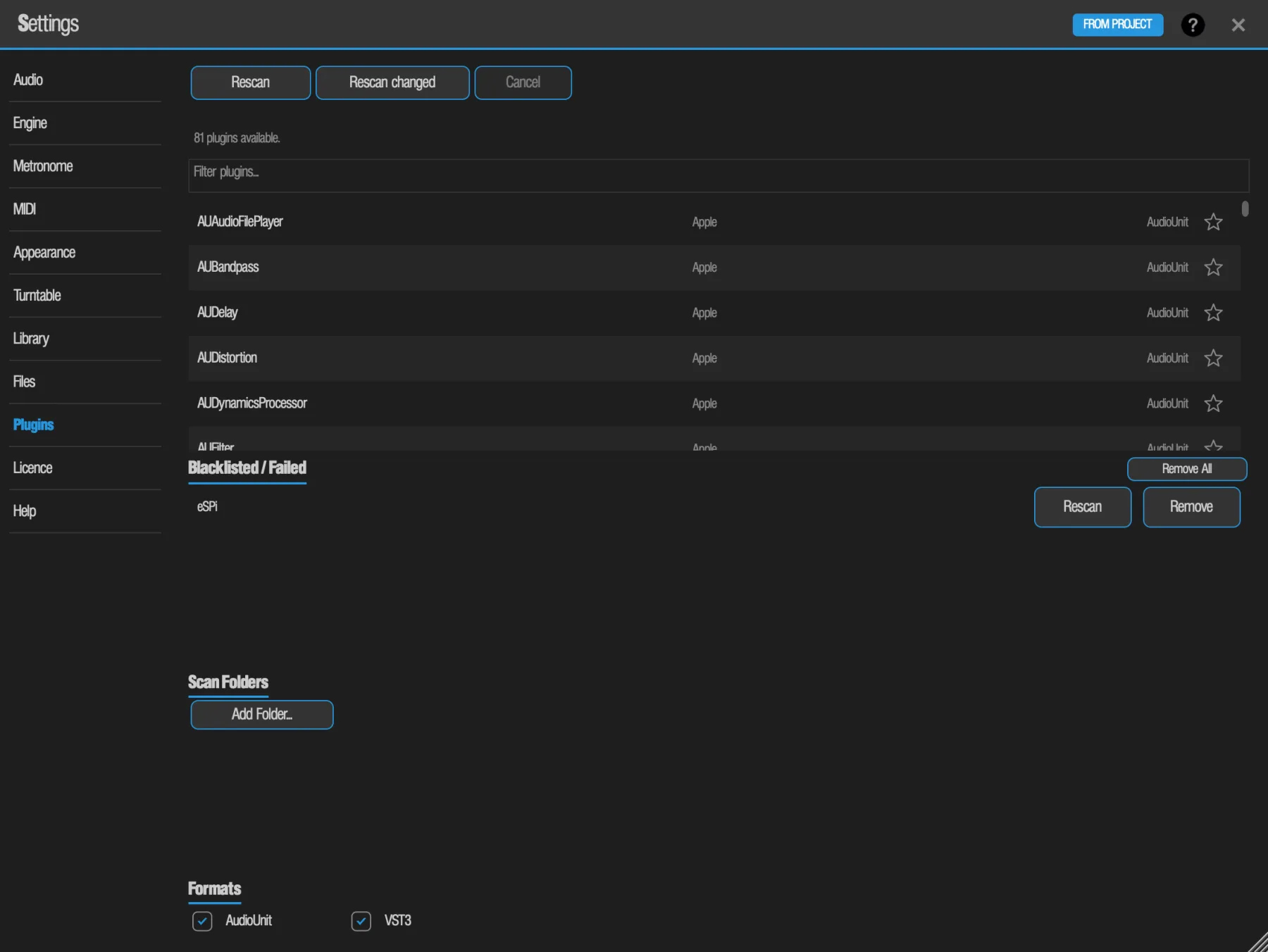
| Control | What it does |
|---|---|
| Rescan | Scans every plugin from scratch. A progress bar shows Scanning N / M and the plugin name; when idle the tab shows how many plugins are available. |
| Rescan changed | Scans only new or modified plugins. Much faster. |
| Cancel | Stops a running scan. |
| Filter plugins... | Filters the list of scanned plugins by name. |
| ☆ Star | At the right of each plugin. Adds it to your Favorites, shared with the Plugins sidebar and the Add Effect picker. |
| Blacklisted / Failed | Plugins that crashed, hung or failed during a scan. Remove takes one off the list so the next Rescan tries it again. |
| Rescan · Remove All | Each blacklisted plugin has a Rescan button that scans just that plugin again. Remove All, on the list's header, empties the whole list. |
| Scan Folders | Add Folder... adds extra places to look. Each added folder can be removed. |
| Formats | VST3 and AudioUnit scanning on or off. At least one must stay on. On iOS only AudioUnit is offered. |
- Scanning works in the standalone app only. The plugin version uses the list the standalone scanned.
- On first launch, if nothing has been scanned yet, the standalone asks once whether to scan now.
- iOS: a third-party AUv3 only shows up after you have opened its own app at least once. Then Rescan.
Macros Plugin only
The 64 Macros are DAW automation lanes that you point at eSPi controls. The tab appears only when eSPi runs as a plugin inside a DAW. The workflow is in Automate eSPi from the DAW.
| Control | Default | What it does |
|---|---|---|
| Macro rows (64) | Macro 1–32: Pad 1–32 Pitch. Macro 33–64: Pad 1–32 Level. | Each row shows the Macro, its target, or Unmapped / Missing. |
| Choose | — | Opens a searchable list of every control a Macro can drive. Tap a control, then Map. |
| Learn | — | Closes Settings and waits for you to touch a control. The chip reads MACRO n; its X cancels. |
| Clear | — | Unmaps the row. |
| Default | — | Returns the row to its default target. |
| Reset All | — | Returns all 64 Macros to the default map after a confirm. Undo restores them. |
Master Volume and Swing are fixed host parameters and don't appear here. Built-in effect knobs, hosted-plugin macro knobs, mixer-desk controls, pads and Swing can be targets; wet/dry controls can't. The map is saved with the DAW project and in .espi files. Every action is one undo step.
Some targets have nothing on screen to touch for Learn, such as each pad's SSM2044 On, Chebyshev On and Multi Filter On switches. Find them with Choose, under Pads. See Choose a target from the list.
Storage iOS
The iOS app and the AUv3 share one store of sample audio, so your GarageBand or AUM sessions stay tiny. This tab, shown only in the iOS app and AUv3, lets you see and prune that store.
- Each entry is one distinct sample, with its size, its age and when it was last seen. A summary counts the entries and what is selected.
- Entries the current instance uses are marked IN USE and can't be selected.
| Control | What it does |
|---|---|
| Select old (30d) | Selects every deletable entry not seen for more than 30 days. It only selects; nothing is deleted yet. |
| Delete | Deletes the selected entries after a confirm. |
| Refresh | Re-reads the store. |
Help
Open manual... opens this manual on low-hiss.com in your web browser. On a computer, Show news... opens the latest notes from Low Hiss Systems; the standalone app also has both in its Help menu. To find out what a control does without leaving eSPi, use Help mode: its button, a question mark, is in the Settings header too, just left of the cross.
Updates and news
There is nothing to set. The update strip and news are described in Editions and Licence. A dismissed update is remembered by this computer or device, never by the project.