Sample Library
Your sample folders, analysed, searchable and one drag away from a pad. The library sits beside the machine, so you can dig for the right kick while the beat keeps playing.
What the library is
Standalone The Sample Library is a browser for your own sample folders. eSPi imports them once, works out each sound's tempo, key and type in the background, and lets you search, preview and load from one panel docked at the left of the machine. The machine stays visible and playable next to it, and every pad remains a drop target.
The library is part of the standalone app on desktop, iPad and Android. It is not available in the VST3, AU or AUv3 plugin.
Open and close it
- Click the Library icon, the first button in the sidebar, or press Cmd/Ctrl + L (View › Sample Library).
- Close it with the × at the top of the panel, the same shortcut again, or the sidebar icon.
- Drag the panel's right edge to make it wider or narrower.
The library and the Plugin Browser share the same space: opening one hides the other, and closing the library brings a hidden plugin browser back. A full-screen view such as the Waveform Editor hides the panel until you close it. The shortcut is ignored while you are typing in a text field, such as the search box.
The panel at a glance
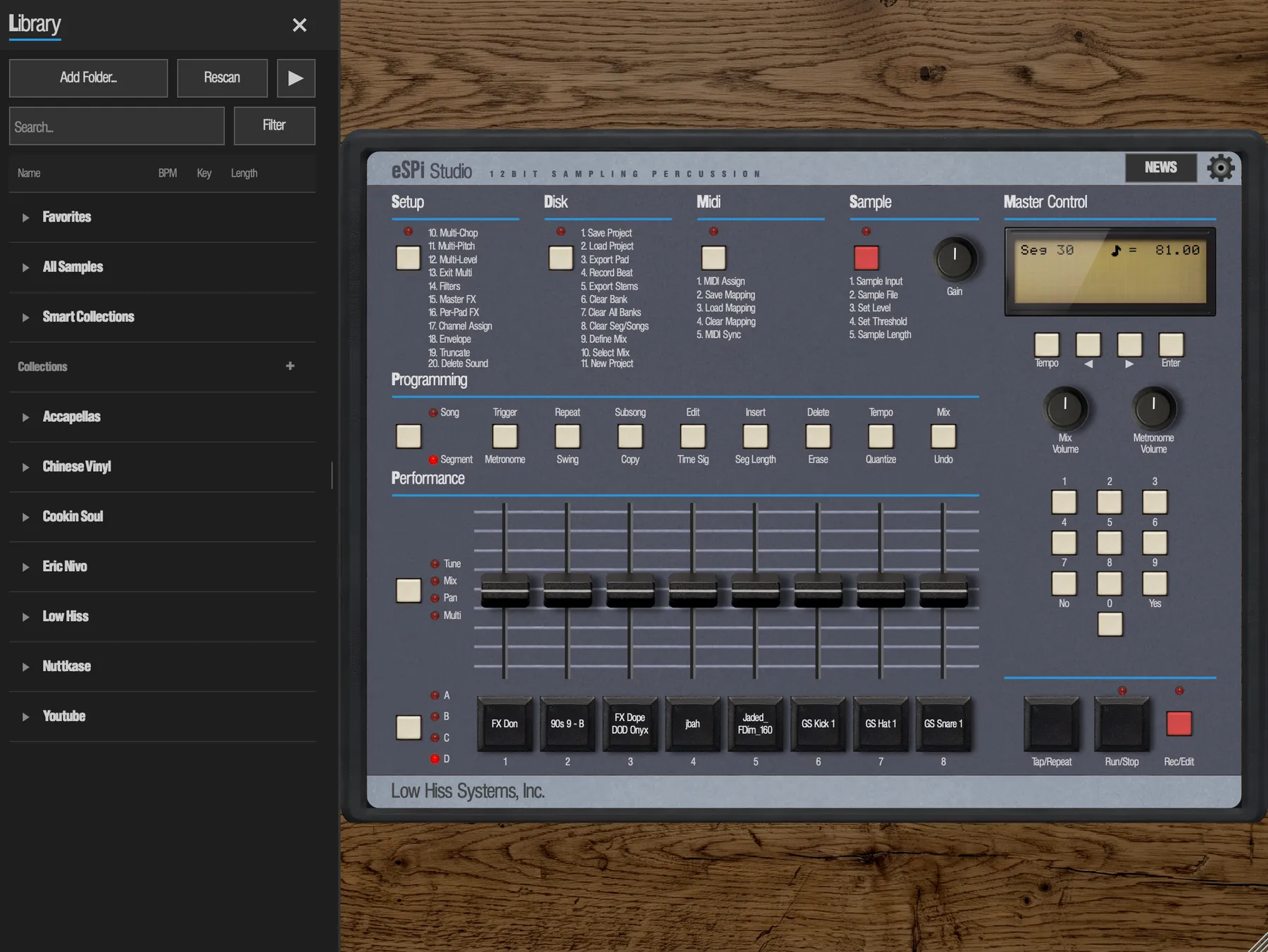
From top to bottom:
- Header. The Library title and the close button.
- Buttons. Add Folder..., Rescan, a Cancel button that appears only while an import or rescan is running, and the square Play/Stop preview button at the far right.
- Browse row. The Search... field and the Filter button. The button reads Filter * whenever a filter is active.
- Filter panel. Shown only when you expand Filter.
- Strips. The Matches: strip when you use Find matches, and the Auditioning banner when you audition on a pad.
- Column headers. Name, BPM, Key and Length. Click one to sort.
- The list. A tree while you browse, a flat list while you search.
- Status line. Import progress and results.
On iPad and Android the library docks beside the machine in the same way. On a phone held upright it covers the top of the screen instead, and the pads stay visible below it.
Import your sample folders
eSPi does not copy your samples anywhere. It remembers each folder you add as a library root and indexes everything inside it.
- Open the library with Cmd/Ctrl + L.
- Click Add Folder... and pick a folder in the Add Folder to Library chooser. Or drag one or more folders from Finder or Explorer and drop them on the panel. On Android, eSPi first asks for permission to read your audio files, and the folder must be on the device's own storage or SD card, not a cloud drive.
- Watch the status line. It counts through the files (Importing 140 / 600...), then sums up, for example Imported 12, 3 duplicates, 1 failed, 2 skipped.
- To stop a long import, press Cancel. The status line reads Import cancelled. Everything imported so far stays, and the rest is picked up at the next launch or Rescan.
- Formats
- WAV, AIFF/AIF, FLAC, OGG and MP3. Subfolders are imported too, all the way down.
- Skipped
- Video files (such as MP4, MOV, M4A, MKV and WebM) and app or plugin bundles (such as
.app,.vst3and.component) are counted as skipped and never imported. - Duplicates
- A file whose audio is identical to one already in the library is counted as a duplicate instead of being added twice, even under a different name.
- Analysis
- Files appear in the list straight away. eSPi then analyses them in the background for BPM, key, type and a waveform thumbnail. Until a row is analysed it is dimmed, shows - for BPM and key, and sits at the bottom of the list. You can keep working the whole time.
An empty library says No samples yet - add a folder to build your library. If the library cannot open its database, it shows Library unavailable.
Browse the tree
When you are not searching, the list is a single tree. Click a row, or its triangle, to expand or collapse it. eSPi remembers what you had open when you search and then clear the search.
- Favorites
- Every sample you have starred.
- All Samples
- Everything in the library.
- Smart Collections
- An automatic tree built from the analysis: Drums (with Kicks, Hihats, Snares and Percs), Melodic (anything detected as pitched), Loops, and Vocals (files whose name contains vocal, vox, acapella, accapella or adlib, plus samples you set to Vocal with Set Type). A sample can appear in more than one, such as a keyed loop under both Melodic and Loops. Smart Collections cannot be renamed or deleted.
- Collections
- Your own collections, each with a member count such as (4), followed by your saved searches, marked (search). The + on the header makes a new collection.
- Your folders
- Each imported folder as a bold row. Inside it, subfolders come first, then that folder's own samples.
What a row tells you
- Thumbnail
- A small waveform to the left of the name. It is hidden when the panel is too narrow.
- Name
- The file name.
- BPM
- The detected tempo as a whole number, or - for one-shots and rows still being analysed.
- Key
- The detected key, such as Am or C#, coloured by its place on the Camelot wheel so compatible keys look alike. Drum and other unpitched sounds show their type here instead: kick, snare, hat, perc, loop or, if you set it, vocal. A guess eSPi is less sure of is dimmer and ends in a question mark, such as perc?.
- Length
- Duration in minutes and seconds.
- Star
- At the far right. Click it to make the sample a favorite.
- Markers
- A play triangle while the row is previewing, a diamond while it is being auditioned on a pad, and (!) with the row greyed out when the file is missing from disk.
Search, filter and sort
Search
Type in Search... and the list narrows as you type. Search is not case-sensitive and matches the file name or the folder path inside the imported folder, so kick finds Kick.wav and everything under Drums/Kicks. Your folder structure is effectively your tagging system. While you search or filter, the tree flattens into a plain list of results. Clear the field to get the tree back. When nothing matches, the list says No matches.
Filter
Click Filter to open the filter panel:
- BPM
- Minimum and maximum tempo.
- Key
- Any, or one of the 24 major and minor keys.
- Sec
- Minimum and maximum length in seconds.
All active filters combine with the search text. Collapse the panel and the filters stay on, which is why the button then reads Filter *. If you enter a minimum above the maximum, eSPi swaps them. A value it cannot read counts as no limit.
Sort
Click a column header to sort by it: once for ascending, twice for descending, a third time to go back to the default, which is by name. Rows with no BPM or key always sort last.
Preview a sample
Click a row to select it. Cmd/Ctrl-click or Shift-click to select several, or drag a selection box.
- Select a row and click the square Play/Stop button, or press Space while the list has focus. Press again to stop. It fades out quickly, without a click.
- Holding Space plays once; it does not retrigger. In the search box, Space just types a space.
- Preview plays through the main output. It does not touch any pad and is never recorded.
Two options in Settings › Library shape previewing:
- Auto-Preview on Select
- On by default. Selecting a single row plays it at once, and clicking the selected row again replays it. Building a multi-selection never auto-plays.
- Preview Volume
- From 0 to 1, default 1. Changes apply while a preview is playing.
Load samples onto pads
Drag a row from the library onto a pad. The pad loads the sample with the full SP-1200 character, exactly as if you had loaded the file directly, and any preview stops. On iPad and Android, drag the row sideways toward the pads; an up-and-down swipe scrolls the list instead.
- Several at once. Drag a multi-selection onto a pad. That pad gets the first sample, and the rest fill the following empty pads in order, carrying on into later banks up to D8. Pads that already hold a sound are skipped, never overwritten.
- Replacing a pad. Dropping onto a pad that already holds a sound replaces it without asking. Press Cmd/Ctrl + Z to get the old one back.
The LCD confirms what happened: Loaded to pad A3, Loaded 5 samples, Loaded 4/5 when some did not fit, or Load failed.
Loading from the library is drag only. For other ways to fill pads, see Loading & Sampling.
Audition a sample on the selected pad
Previewing tells you how a sound plays alone. Auditioning tells you how it sits in the beat: the library sample temporarily stands in for a pad while the sequence runs, and the pad itself is left untouched.
- Select a pad on the machine.
- Right-click a library row (long-press on touch) and choose Audition on selected pad.
- The pad's next hits play that sample, through the pad's own tune, level, pan, envelope and filter. The banner reads Auditioning A1 - Kick 07 with a Stop button, and the row shows a diamond.
- Press Stop, or choose Stop audition from the row's menu, to end it.
Favorites, collections and saved searches
Favorites
Click the star at the right of a row, or choose Favorite / Unfavorite from its right-click menu. Starred samples gather under Favorites.
Collections
Collections are hand-picked sets, such as the kit for one project. A sample can belong to as many as you like.
- Create: click + on the Collections header, type a name and press OK.
- Add: right-click a sample › Add to Collection, then pick a collection or New Collection....
- Remove: right-click the sample inside that collection › Remove from Collection.
- Rename or delete: right-click the collection › Rename... or Delete.... Deleting a collection never deletes its samples.
Saved searches
A saved search remembers a query and runs it again each time you open it, so new imports that match turn up on their own.
- After searching or filtering, click Save as Saved Search... and name it.
- From Find matches, click Save... in the matches strip.
Saved searches sit under Collections, marked (search). Right-click one to Rename Saved Search or Delete Saved Search. If a match search's starting sample has since been removed, it says (seed no longer in library).
Find matches
Found a great kick and want its siblings? Right-click a row, choose Find matches, then one of:
- Matching drums
- Other drum sounds, grouped into Kicks, Hihats, Snares and Percs, best match first.
- Key-compatible melodics/bass
- Pitched samples. The same key, its relative and its neighbours on the Camelot wheel rank highest.
- Similar sounds
- A broader ranking across every type, by tone, tempo, energy and key.
While matches are showing, a strip reads, for example, Matches: Kick 07 (matching drums). It has two toggles: Key: compatible / Key: strict (strict favours only the exact key) and Loops: off / Loops: on. Use Save... to keep the result as a saved search, or Clear to go back to browsing. Starting a match clears any search and filters, and the sample you started from is not in the list.
Rescan and missing files
Click Rescan to walk all your folders again. It imports new files, flags missing ones and catches files you have moved or renamed. eSPi also does this quietly in the background every time it starts.
- Missing files
- The row stays in the library, greyed out with (!). You can still select it, star it, add it to collections or remove it. Put the file back and rescan to clear the flag.
- Moved or renamed files
- Inside one of your added folders, eSPi recognises a moved file by its audio and reconnects it to the same row, so its star and collections are kept. The status line counts these as relinked.
- Set Type, Set BPM, Set Key
- Right-click a row to correct what the analysis found. Set Type lists Kick, Snare, Hihat, Perc, Loop, Vocal, Tonal and One-shot, with the current type ticked. Set BPM... opens a box filled in with the current tempo; type a value from 20 to 999. Set Key has Major and Minor lists with the current key ticked, plus No Key. Your values are saved in the library and used everywhere: the columns, sorting, the BPM and key filters, Smart Collections and Find matches.
- Re-analyze
- Right-click a row › Re-analyze to work out its BPM, key and type again, in the background. This replaces anything you set by hand.
- Remove from Library
- Right-click a row › Remove from Library, then confirm. The file on disk is not deleted, and pads already loaded from it keep playing.
- Remove Folder from Library
- Right-click a folder › Remove Folder from Library, then confirm. Its samples and subfolders leave the library; the files stay on disk. Removing a top-level folder also stops eSPi rescanning it.
Stock samples
eSPi ships with 32 stock sounds that fill empty pads, so a new project is never silent. They are not part of the library browser; you manage them under Stock Samples in Settings › Engine:
- Stock Samples (toggle)
- On by default. Fills empty pads with the stock kit at startup and on every new project.
- Load now
- Fills every empty pad with its stock sound right away, after a Load Stock Samples confirmation.
- Remove now
- Clears every pad that holds a stock sound, after a Remove Stock Samples confirmation. This cannot be undone.
In SP-1200 Mode the stock kit is never loaded and Load now is greyed out, because it would not fit in the SP-1200's memory.