Hosting Plugins
Your favourite compressor on the snare, a synth on pad 8, all sequenced from the SP-1200 workflow you already know. eSPi hosts your own effect and instrument plugins right inside the machine.
On eSPi Essentials, the Plugins sidebar, the Plugins tab in Settings and the pad menu's Load and Open Instrument are not shown.
Where plugin hosting works
eSPi hosts the plugin formats native to each platform. Effects go into any effects chain; instruments load onto pads.
| Where eSPi runs | Effects | Instruments | Notes |
|---|---|---|---|
| MacOS standalone | VST3, AU | VST3, AU | Everything: the Plugins sidebar and editor windows. |
| Windows, Linux standalone | VST3 | VST3 | The same, VST3 only. |
| Inside a DAW | Yes | Yes | Uses the plugin list scanned by the standalone app. Scanning itself only works in the standalone. |
| iPad, iPhone | AUv3 | AUv3 | No Plugins sidebar. Add effects from the rack and instruments from the pad menu. Editors open full screen. |
| Android | None | None | No third-party plugin hosting. |
Scan for plugins
eSPi needs to scan your plugins once before you can use them. The first time you open the standalone app with nothing scanned, it offers to do it for you under the title Scan for plugins?. You can scan, or rescan, any time from Settings.
Open Settings with the gear on the faceplate (or Options › Settings… in the standalone menu) and choose the Plugins tab.
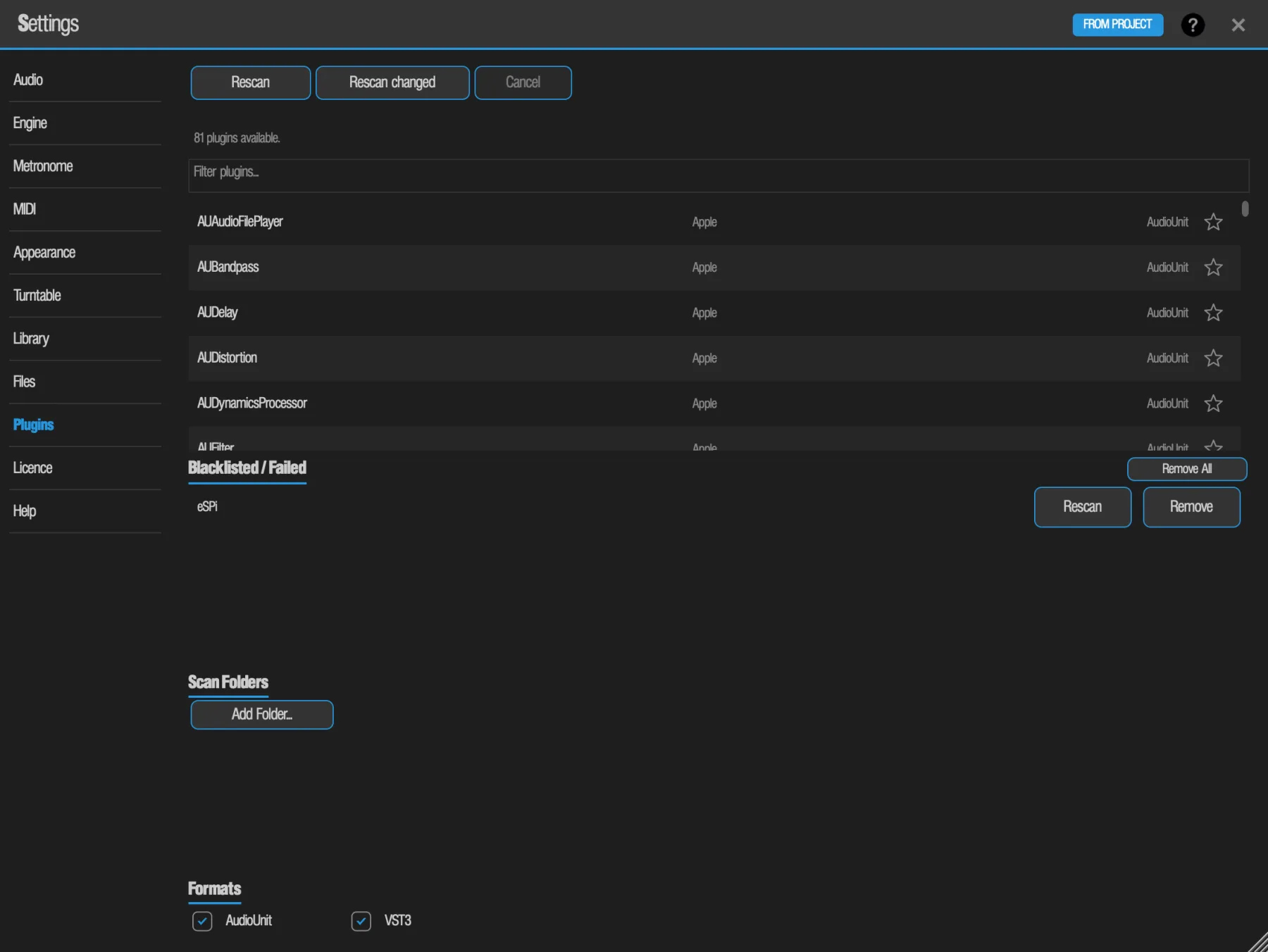
- Rescan
- Scans everything from scratch.
- Rescan changed
- Scans only plugins that are new or have been updated. Much quicker after you install something.
- Cancel
- Stops a scan in progress. While one runs, a progress bar shows Scanning 12 / 81 and the plugin being checked; when idle, it reads 81 plugins available.
- Filter plugins…
- Type to narrow the list of scanned plugins.
- ☆ Star
- At the right of each plugin. Click it to add the plugin to your Favorites, the same ones the Plugins sidebar and the Add Effect picker show.
- Blacklisted / Failed
- Plugins that crashed, hung or failed during a scan. Press Remove next to one to take it off the list, and the next Rescan tries it again. Rescan scans just that one plugin again. Remove All, on the list's header, empties the whole list at once.
- Scan Folders
- Add Folder… adds an extra place to look, for plugins installed somewhere unusual. Each added folder can be removed again.
- Formats
- Turn AudioUnit and VST3 scanning on or off. At least one stays on. On iPad and iPhone only AudioUnit is offered.
Scans check several plugins at the same time, and skip plugins on the Blacklisted / Failed list, so a plugin that hung once does not hold up every later scan.
On iPad and iPhone
A third-party AUv3 only appears after you have opened its own app at least once. Open it, come back to eSPi and press Rescan. If eSPi is force-quit during a scan, the plugin being checked may end up blacklisted: Remove it, then rescan.
Messages you might see
- Plugin scanning is available in the Standalone app only. You are in eSPi inside a DAW. Open the standalone app to scan.
- Scanner unavailable - could not launch the scan process. The separate scanning process couldn't start.
- Scan cancelled. You pressed Cancel.
The Plugins sidebar Desktop
The Plugins sidebar is the quickest way to get a plugin onto a pad: find it, drag it, done. Open it with Plugins in the sidebar, View › Plugin Browser, or Cmd/Ctrl + B in the standalone app. It takes the place of the sidebar buttons; its close cross brings them back. Drag its right edge to make it wider.
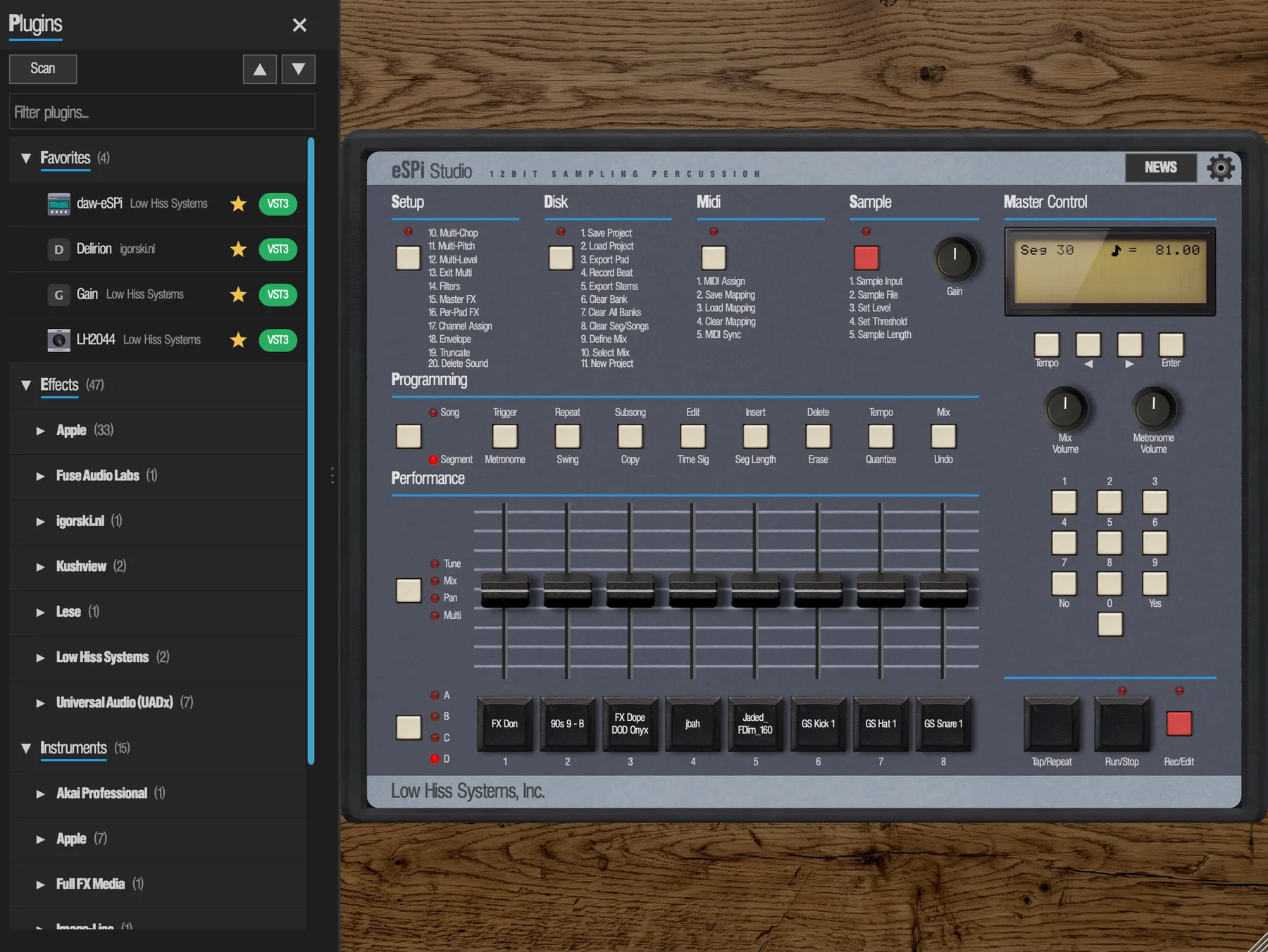
- Scan starts a scan from here. Progress shows as Scanning 12/81.
- Scan New scans only plugins that are new or have changed since the last scan. Much quicker than Scan after you install or update a plugin.
- Filter plugins… narrows both lists as you type. No hits reads no matches.
- The ▲ ▼ arrows collapse or expand every manufacturer at once. Manufacturers start collapsed.
- Each row shows the plugin's icon left of its name, or a tile with its first letter when the plugin has no icon, and carries a format badge: green for VST3, purple for AU.
- Click the ☆ star on a plugin to add it to Favorites, at the top of the list. Favorites hold effects and instruments together, each with its manufacturer, and are remembered across sessions and projects. Click the star again to remove it. The Add Effect picker and Settings > Plugins show the same stars.
With nothing scanned, the sidebar says No plugins - tap Scan.
Drag a plugin onto a pad
- An effect, onto any pad
- The effect is added to that pad's chain. The Effects Rack opens on the pad with the new slot flashing, ready to tweak.
- An instrument, onto an empty pad
- The instrument loads onto the pad. A pad that already holds a sample or an instrument refuses it.
If a drop can't be done, the pad flashes red.
Plugin effects in the rack
You can add a plugin effect from the sidebar, as above, or from the rack itself: click the screwdriver in an empty bay and look under Plugin FX in the picker. When a plugin is installed in both formats, click its badge in the picker to choose which one to add. See Add, arrange and remove effects.
Every plugin effect gets the same faceplate in the rack, so the most-used controls are always at hand:
- Nameplate
- The plugin's name and manufacturer.
- 6 macro knobs
- Each knob controls the plugin parameter named on the small LCD above it. They start on the plugin's first six parameters; click an LCD to pick any of the plugin's parameters for that knob from a dropdown (long lists are split into sub-menus). Picking a parameter another knob already has swaps the two. Your choice is saved with the project and is one undo step; MIDI and Macro mappings follow the parameter, not the knob position. Positions the plugin has no parameter for are blank. The knobs follow the plugin: change one of these parameters in the plugin's own editor and its knob moves too.
- WET/DRY
- Blends the plugin with the dry signal.
- VU
- A needle showing the output level.
- BYPASS
- Switches the plugin out.
- OPEN
- Opens the plugin's own editor. On desktop it is a separate window titled with the plugin's name; click OPEN again to bring it to the front. The window closes by itself if you remove the effect, and stays open when you bypass. On iPad and iPhone the editor opens full screen with a Done button. Drag the window's edge to resize it when the plugin's editor supports resizing.
Latency
When a plugin reports latency and isn't bypassed, its faceplate shows it, for example 5 ms latency, or in samples (32 smp latency) when it is under a millisecond. Above 10 ms it adds - high latency. This is a readout of what the plugin reports. Keep an ear on timing if you use a high-latency plugin on one pad and not on others.
When a plugin can't load
- Loading…
- The plugin is loading in the background. The knobs and OPEN wake up when it's ready.
- Plugin missing
- It isn't installed or hasn't been scanned on this computer. Install it and rescan in Settings › Plugins.
- Plugin failed to load
- Shown with the reason the plugin gave.
- No usable audio output
- The plugin has no audio output eSPi can use, so the slot passes the sound through untouched.
Plugin effects have no eSPi presets, so use the plugin's own preset system in its editor. They also can't be added from the LCD FX screens.
Plugin instruments on pads
Load a synth onto a pad and it behaves like any other sound on the machine: sequenced, mixed, effected and saved with the project.
- Right-click an empty pad (long-press on touch) and choose Load Instrument....
- Pick an instrument from the list, grouped by manufacturer with format badges. On desktop you can instead drag an instrument from the Plugins sidebar onto an empty pad.
- The pad now shows the plugin's name and an INST tag, and it gets a strip on the mixer.
Play it
- Clicking or tapping the pad plays its root note, C3 (MIDI note 60) unless you change it.
- External MIDI routed to the pad plays it chromatically.
- The sequencer and the piano roll play pitched notes. Each piano-roll lane is the root note plus or minus semitones, over a range of ±16 semitones.
- New instrument pads use the Gate trigger mode, so notes last as long as you hold them. In OneShot mode every note becomes a very short blip.
The instrument goes through the pad's effects chain, its group and choke channel, and its mixer strip, exactly like a sample.
Edit, clear and replace
- Open Instrument...
- Opens the synth's own editor: a window on desktop, titled with the plugin's name and its latency, or a full-screen overlay with Done on iPad and iPhone. Large editors scroll. Drag the window's edge to resize it when the editor supports resizing.
- Clear Instrument
- Removes the instrument. The sound stops cleanly and no notes hang. It is undoable.
- Load a sample over it
- Replaces the instrument with the sample. One undo brings the synth back with its patch. Live-sampling onto an instrument pad asks Overwrite? (yes/no) first.
When Open Instrument is greyed out, its label tells you why: (loading), (plugin not found), (failed to load), (no MIDI input) or (no audio output).
Macros: automating plugins from your DAW
When eSPi runs as a plugin inside a DAW, Settings › Macros gives you 64 Macro slots, each one a DAW automation lane. Press Learn on a slot, touch a control, and that lane now drives it. Built-in effect knobs and the macro knobs on a plugin effect's faceplate can both be Macro targets; wet/dry controls cannot. The full workflow is in eSPi in Your DAW.