Grid & Piano Roll
Record it live, then fix it by eye. The Sequencer Grid lays every hit of a segment out in front of you, and the Piano Roll turns one pad into a melodic instrument.
Open the Sequencer Grid
The grid shows the segment you are working on, one row per pad, so you can draw beats in, move a late snare, or thin out a busy hat line without recording again. It edits the same segment the faceplate plays: anything you change here is what the sequencer plays back.
- Press Cmd/Ctrl + G, click Sequencer in the sidebar, or in the standalone app choose View › Drum Grid.
- Close it with Esc, the ✕ at the top right, or Cmd/Ctrl + G again.
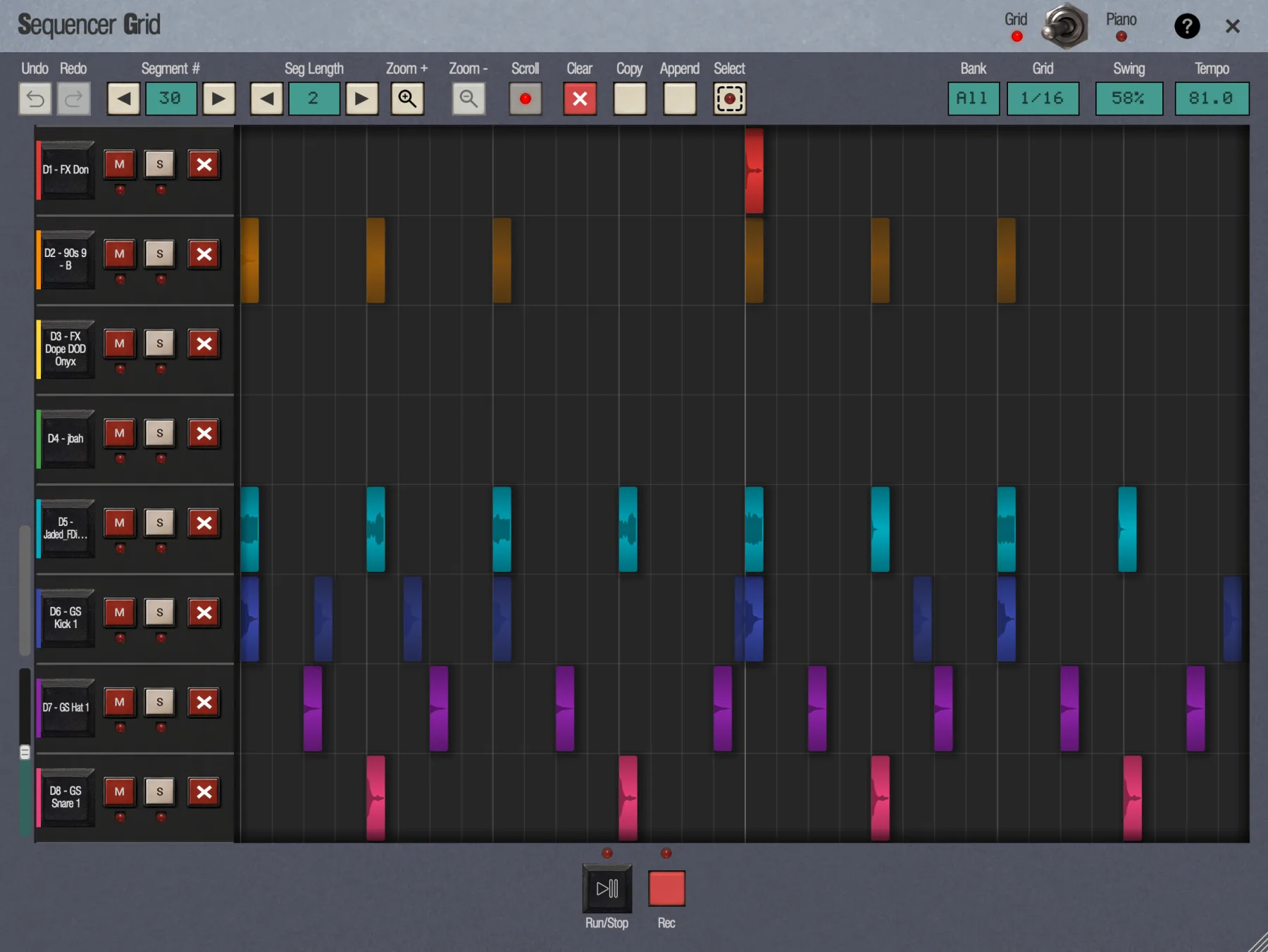
The control bar
The strip across the top holds everything that applies to the whole segment.
- Grid / Piano switch
- Flips between the drum grid and the Piano Roll. The LEDs show which one you are in. The grid always opens in Grid mode.
- Undo · Redo
- The same shared undo timeline as the faceplate. A short message names each step, such as Undo: Move Hit.
- Segment # ◄ ►
- Steps through segments 00 to 99. An empty slot shows an empty grid, ready to draw in.
- Seg Length ◄ ►
- 1 to 99 bars.
- Zoom + · Zoom -
- Zoom in and out in time. The + and - keys do the same.
- Scroll
- On by default (its LED lights): while zoomed in, the view follows the playhead during playback. Turn it off to keep the view still while you edit one spot.
- Clear (red ✕)
- Empties the segment. Undoable.
- Copy · Paste / Append
- Copy grabs the whole segment (Copied Seg 30). Pasting into an empty segment makes a full copy. When the current segment already has notes, the button reads Append and adds the copy after them, overwriting nothing; past 99 bars it refuses with Segment too long (max 99 bars). The copy lasts only while the grid is open and isn't saved with the project.
- Select
- The selection tool. Its LED lights while it is on. See Select several notes.
- Bank
- Bank A to Bank D, or All (32 pads). The grid opens on All, scrolled to the row of the last note you added. Scroll with the wheel, the scrollbar at the left, or a drag on the pad column. On a phone the rows are taller, so a single bank scrolls too. Choosing a bank here doesn't change the machine's bank.
- Grid
- The snap division: 1/4, 1/8, 1/8t, 1/16, 1/16t, 1/32 or 1/32t. It opens matching the segment's Auto-Correct setting and isn't saved. Changing it doesn't change Auto-Correct.
- Swing
- Click for the presets 50% to 71%, plus Manual… to type any value from 0 to 100. Manual… is hidden in SP-1200 Mode.
- Tempo
- Drag up or down for big moves, use the wheel for 0.25 BPM steps, or click and type an exact value, then Enter (Esc cancels).
- Run/Stop · Rec
- At the bottom, each with an LED. Space plays and stops while the grid is open. The grid's Run always starts from the top.
Rows
Each row is one pad. From left to right:
- The pad cell, with its code and name, such as D6 - GS Kick 1. Click it to hear the pad; this also selects its row.
- M (mute) and S (solo), drawn like the buttons on a Mixer strip: the lamp below each lights while the pad is muted or soloed. These are the same mute and solo as on the faceplate and in the Mixer; see Mute and solo.
- ✕ deletes every note that pad has in this segment, in one undoable step.
Lane height
Drag the bottom edge of a row in the pad column to make that lane taller or shorter; the pointer turns into an up/down arrow over the edge. Double-click the edge to return the lane to its default height. The Piano Roll works the same way on its keys. Heights last for the session and aren't saved with the project.
The thin vertical slider at the bottom left of the lanes, under the row scrollbar, zooms every lane at once, from half to four times the normal height: drag it up for taller lanes, down for shorter ones. Lanes you resized keep their proportion. Double-click the slider to go back to normal.
Select lanes
Click an empty part of a row header, or its pad cell, to select that row. Cmd/Ctrl-click adds or removes a row, and Shift-click selects every row from the last one you clicked. Neither plays the pad. In the Piano Roll a plain click on a key still only plays it; use Cmd/Ctrl-click or Shift-click to select lanes. A drag with the Select tool also selects the lanes it covers, Cmd/Ctrl + A selects every lane, and Esc clears the lane selection.
Drag the bottom edge of a selected lane and every selected lane takes the same height; double-click it to reset them all. The edge of a lane outside the selection only changes that lane.
Edit notes
Each note shows the waveform of the audio it actually plays, with the pad's tuning and truncation applied, and its brightness shows its velocity.
| Do this | To |
|---|---|
| Click an empty cell | Add a note at the start of that cell, at full velocity, and select it |
| Click a note | Select it |
| Right-click a note | Delete it |
| Right-drag across notes | Erase everything you sweep over, as one undo step |
| The floating ✕ by a selected note | Delete it (handy on touch screens) |
| Drag a note left or right | Move it in time, snapped to the Grid division. It stays on its row. |
| Drag a note up or down, or scroll over it | Change its velocity |
| ← → | Nudge the selection off the grid by one fine step |
| Delete / Backspace | Delete the selection |
The fine nudge step is 1/24 of a beat by default. Set it with Sequencer Resolution (24, 48 or 96 PPQ) in Settings › Engine.
Gate lengths and trims
Notes on a pad in Gate mode are bars rather than hits, with a ▶ on the right edge. Drag that edge to set how long the note holds. Drag the left edge to trim the start like a clip in a DAW: the end stays put and the head of the sound is cut. One-shot pads show no arrow.
Select several notes
Turn on Select, then drag a box around the notes you want. Shift-drag adds to the selection, and Shift-click toggles one note. Drag any selected note to move the whole group; it stops at the loop edges rather than squashing. The arrow keys and Delete act on the whole group, and every group action is one undo step. The tool switches off each time the grid opens. Drag the box past an edge of the grid and the view scrolls, so a selection can be bigger than the screen; the mouse wheel scrolls under the box too. Cmd/Ctrl + A selects all notes and leaves Select as it is; drag any of them to move them all: in the Grid, every note on the rows shown; in the Piano Roll, every note of the pad.
The Piano Roll
Play a pad up and down the keyboard and you have a bassline, a stab progression or a pitched-down vocal hook. The Piano Roll edits one pad's part by pitch.
- Press Cmd/Ctrl + P, click Piano Roll in the sidebar, or flip the grid's Grid/Piano switch.
- The Pad chip, where the grid has its Bank chip, picks which pad you are editing from a Bank, then Pad, menu.
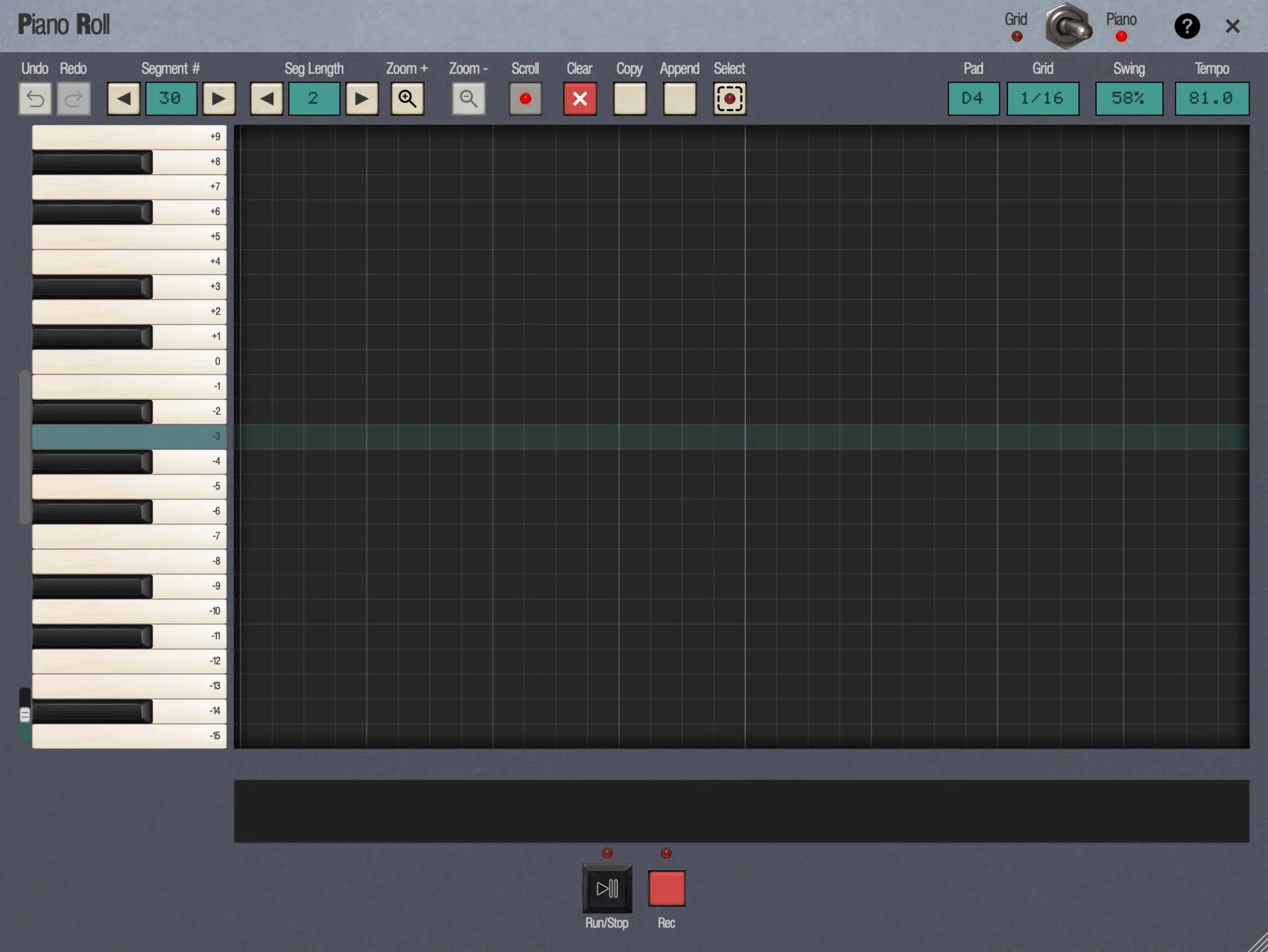
The lanes are drawn as a piano keyboard, white and black keys, each still marked with its semitone number, across a full 88-key piano, from +48 (C8) down to -39 (A0). On a sample pad 0 is middle C (C4); on an instrument pad the keys show the notes the instrument really plays. The pad's own pitch key is highlighted. Click a key to hear that pitch without adding a note.
The roll shows two octaves (25 keys) at a time and opens on the pad's own pitch. To reach the keys above or below, scroll: the mouse wheel, anywhere over the keys or the note area, moves one key at a time, and the scrollbar at the left drags freely. On a phone the keys are taller, so fewer fit; use the scrollbar to see the rest.
With SP-1200 Mode on, the keys you can edit on stop at the pitches a real SP-1200 can play for this sample pad: up to 8 semitones below and 7 above the pad's own pitch, and never above +15. The other keys are darkened: clicking there adds no note, and dragging or transposing a note stops at the last playable key. Pasted or older notes outside that range are left as they are. Instrument pads are not limited.
Write and shape notes
- Click an empty lane to add a note.
- Drag a note sideways to move it in time, up or down to change its pitch, or diagonally to do both.
- ↑ and ↓ transpose the selection a semitone at a time; ← and → nudge it.
- Drag the bars in the velocity strip under the roll to set velocities, or sweep across several notes at once.
- Gate lengths and left-edge trims work just as in the grid.
Every other control in the bar works as in the grid. Retuning the pad transposes its whole part, except notes recorded with Lock Pitch on Record, which keep their pitch and sit in the lane they were recorded at.
Keys in the editors
| Key | Does |
|---|---|
| Space | Play / stop |
| ← → | Nudge the selection |
| ↑ ↓ | Transpose the selection (Piano Roll) |
| Delete / Backspace | Delete the selection |
| Cmd/Ctrl + A | Select all notes and lanes (Select stays as it is) |
| + / - | Zoom in / out |
| Cmd/Ctrl + Z | Undo; add Shift (or use Ctrl + Y) to redo |
| Esc | Clear the lane selection; with none, close the editor |
Cmd/Ctrl + G works everywhere. Cmd/Ctrl + P is standalone only; in a plugin, use the sidebar button. The full list is in Shortcuts & Gestures.