Effects
Compression that pumps, tape that wobbles, vinyl that crackles. eSPi has a full rack of hardware-style effects you can put on any pad, any group or the whole mix, and you can drive every one of them from the eight faders.
How effects fit together
Before you reach for a knob, it helps to know where an effect sits in the signal path. eSPi has three places to insert effects, and each place holds a chain of up to 8 effect slots.
- Per-Pad
- One chain for each of the 32 pads. It processes only that pad's sound, including a plugin instrument loaded on the pad.
- Group
- One chain for each of the 32 groups. It processes the group's sub-mix, so one compressor can glue a whole drum kit together.
- Master
- One chain on the main stereo bus, after everything else. The metronome click does not go through it.
Channel and group are not the same thing
This trips people up, so it is worth a minute. A pad's channel only decides choke: pads on the same channel cut each other off, just like an open and closed hat. It carries no audio. You set it in Setup › Channel Assign or from the pad menu.
A pad's group is its audio bus. The group gives you a sub-mix, a group effects chain, a strip on the mixer, a sidechain key and an output of its own. There are 32 groups, or 8 while SP-1200 Mode is on.
On a fresh pad the group follows the channel, so changing one moves the other. Once you set the group on its own, from the mixer strip, the two go their separate ways. Groups are called Group 1 to Group 32 until you rename them; the LCD shortens that to Gr 3.
Where the chain sits on a strip
Every pad and group runs the same path: Gain, then the 4-band EQ, then the one-knob compressor, then the insert effects chain, then the fader. Pads feed their group, and groups feed the master. On the master, the metronome and the SP output stage join after the master chain and before the master fader.
Three ways to edit
- The Effects Rack, a full-screen view with hardware-style faceplates. Everything is here.
- The LCD FX screens, Master FX and Per-Pad FX in the Setup menu, where the eight faders become effect controls, SP-1200 style.
- The FX button on any mixer strip, which jumps straight to that strip's chain.
The Effects Rack
The rack is where you build chains, see every control at once and save the results as presets.
Open and close it
- Click Effects in the sidebar (the footer icon on iPad, and on phones without the sidebar; on a phone held upright, the header's views menu).
- In the standalone app, choose View › Effects Rack or press Cmd/Ctrl + F.
- On the mixer, click a strip's FX button and choose Open Effects Rack. The rack opens on that strip's chain.
- Drag a plugin effect from the Plugins sidebar onto a pad. The rack opens on that pad with the new slot flashing.
Close it with the cross at the top right or Esc. While it is open, Space starts and stops playback, and so does the play button next to the Effects Rack title, so you can tweak while the beat runs.
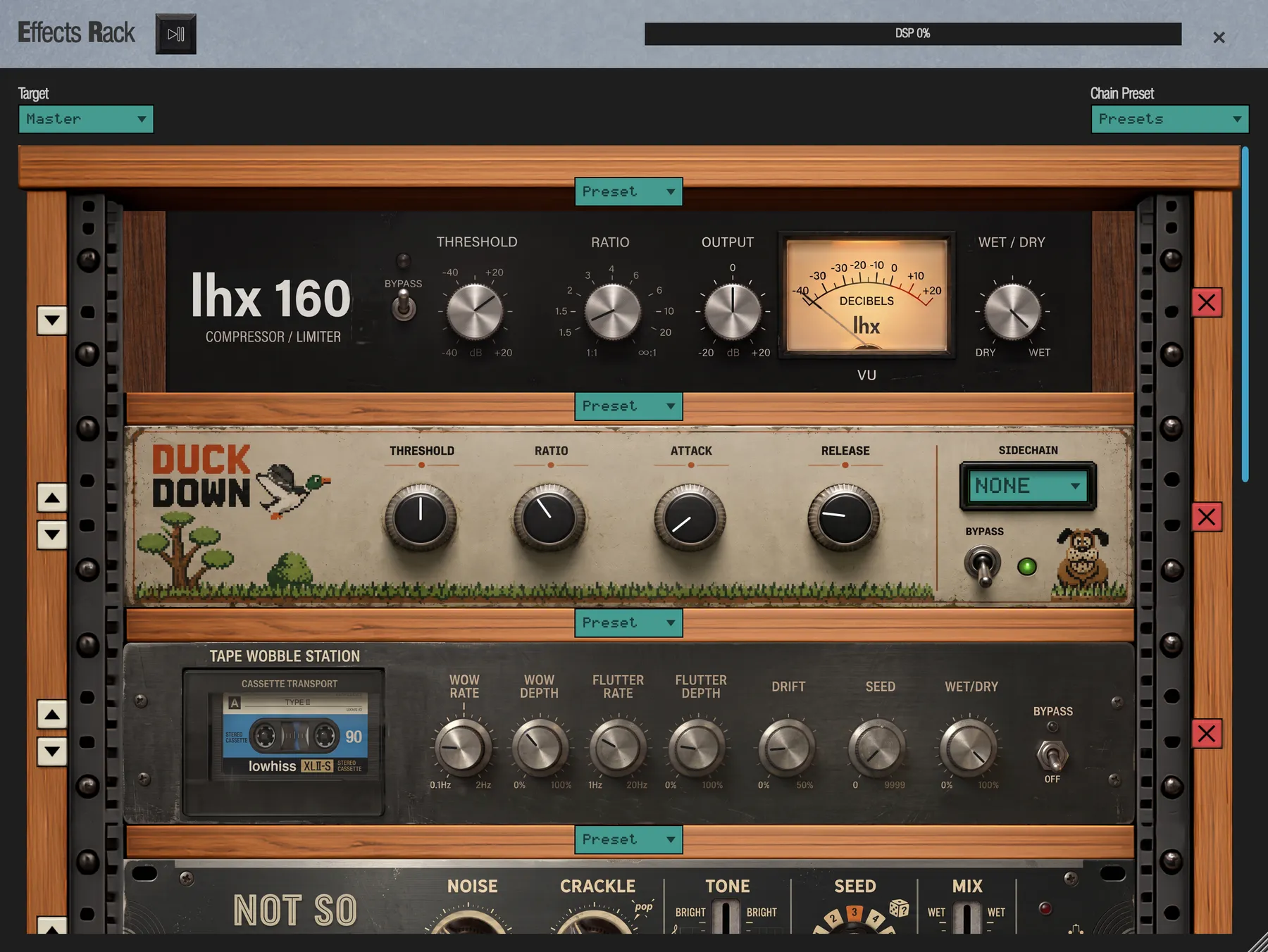 1
2
3
4
5
6
7
8
9
- Play/Stop. Runs the sequencer without leaving the rack.
- Target. Master, Group or Per-Pad.
- DSP meter. How hard the effects are working.
- Chain Preset. Load or save the whole chain.
- Preset chip. Presets for this one effect.
- Move. Swap the effect with the slot above or below.
- Remove. Takes the effect out of the chain.
- Sidechain. The pad or group that drives the ducking. Only the Gate and the Ducker have one.
- Bypass. Switches this one effect off without removing it.
With a Group or Per-Pad target, a Solo button sits right of Play/Stop. It solos that pad or group so you hear it alone while you tweak, and its LED lights while it is soloed. It is the same solo as the mixer and the grid, and it can be undone.
The header
- Target
- Choose Master, Group or Per-Pad. For Group and Per-Pad a second chip appears beside it to pick which one: Group 1 to Group 32, or pads A1 to D8.
- Presets
- The chain preset menu (see Presets).
- DSP meter
- Reads DSP 42%, and adds HIGH at 80% or more. It is a warning only: eSPi never switches anything off for you.
Add, arrange and remove effects
- Choose a Target, and a group or pad if needed.
- In an empty bay of the rack, click the screwdriver painted in the bay. The Add Effect picker opens.
- Browse, or type in Search effects. Favorites, at the very top, holds every effect you starred, built-in and plugin together, from A to Z. Built-in FX starts with All, every built-in from A to Z, followed by the families Dynamics, EQ, Modulation, Delay / Time, Reverb, Character and Utility; click a heading to open it. Plugin FX lists your scanned plugin effects by manufacturer, with its own Favorites group on top that holds only your starred plugins.
- Click a row once to select it, then click Add (or click the same row again). The effect drops into the bay.
Click the ☆ star at the right of any row to add that effect to Favorites; click it again to remove it. Stars are remembered across sessions and projects, and a plugin starred here is starred in the Plugins sidebar and in Settings too.
Built-in rows show the effect's logo, taken from its faceplate, then a chip with the kind of effect, then its name: Wah-Wah Wahmbulance, Reverb Brever, and so on. Search finds an effect by its name, its chip, or its plain name such as Auto-Wah. The rack's slot headers and the mixer show the same names.
Plugin rows show the plugin's icon left of its name and carry a format badge, green for VST3 and purple for AU. When a plugin is installed in both formats, click the badge to choose which one you add. With nothing scanned, the section reads No plugins - scan in Settings > Plugins; see Hosting Plugins. To leave the picker without adding anything, click outside it, click its cross or press Esc.
Slot controls
Every effect sits in the rack as a hardware-style faceplate. Its knobs, a BYPASS switch and usually a WET/DRY knob are on the art itself. Around it, in the rack's margins:
- ▲ ▼
- The cream buttons move the effect up or down one slot, swapping it with its neighbour.
- Remove
- The red × takes the effect out of the chain.
- Preset
- The chip above the faceplate opens presets for this effect.
Click the art away from a knob to focus the slot.
- Drag a knob or slider. You hear the change as you drag, and the whole drag is one undo step.
- Double-click a faceplate knob to put it back to its default.
- Undo with Cmd/Ctrl + Z. Every rack edit is undoable, and the knobs jump back with it.
- On touch, a drag that starts anywhere on a faceplate (a knob, LCD, switch or bare panel art) never scrolls the rack. To scroll, drag the rails, the margins, the gaps between effects or an empty slot.
Sidechain: Gate and Ducker
A sidechain lets one sound control another. The classic move is ducking a bass or a sample under every kick so the low end stays clean. Two effects take a key: the Gate and the Ducker. The key can be any pad or any group.
- Gate
- The faceplate has a SIDECHAIN display. Click it and choose None, a pad or a group. The display reads NONE, A1 or GR 3. With no key, the Gate listens to its own input and works as a normal noise gate.
- Ducker
- The faceplate has a small green LCD. Click it and choose None, a pad or a group. The LCD reads NONE, A1 or GR 3. With no key, the Ducker does nothing and the sound passes straight through.
In the source menu, a pad shows its name next to its number when it has one (its rename, or the loaded sample's name), for example Pad A1 - Big Kick. A group you have renamed shows its name too, for example Group 3 - Drums.
On the LCD FX screens, a Gate or Ducker gets one extra fader labelled SIDECHAIN, right after its parameter faders. Move it and the LCD shows the source, for example Sidechain: A1.
Presets
Effect presets
Click the Preset chip above the faceplate. The menu has a Factory section, a User section with your own presets for that effect, Save as… and Delete "name". Saving asks for a name, and asks before overwriting one that already exists.
Factory presets ship for Vinyl (Dusty 45, Worn LP, Charred) and Tape Wobble (Gentle Tape, Old Cassette, Warped). Plugin effects have no eSPi presets; use the plugin's own.
Chain presets
The Presets chip in the header saves and loads the whole chain. Save chain as… suggests the name "My Chain". Loading a chain preset replaces the entire chain, so save what you have first if you want to keep it.
| Factory chain | Effects, in order |
|---|---|
| Tape Bus | Tape Wobble → LHX160 Compressor |
| Master Glue | LHX160 Compressor → Limiter |
Your user presets are stored on your computer, not in the project, so they are there in every project you open.
Read-only while a Mix plays
A song step can recall a Mix that includes effect chains. While such a step is playing, the rack shows ▶ Playing Mix: Verse — read-only and displays that Mix's chains. You can click effect names to inspect their settings, but nothing can be changed. Editing comes back as soon as that Mix stops playing.
Edit effects from the LCD
The SP-1200 way: no mouse, eight faders and a 20-character screen. It is quick for small moves while you play, and it reaches a few controls the faceplates do not show.
- Press Setup (Q) and choose item 15 for the master chain or 16 for the selected pad's chain.
- Answer Yes (9 on the numpad).
The LCD asks Access Master FX? or Access Per-Pad FX?. 7 is No.
The screen shows one slot at a time: which chain and slot, the effect name, its values and its wet/dry.
An effect with several parameters packs them onto one line. When they don't fit, the line shows the last fader you moved. A bypassed effect adds (BYP) after its name.
Per-Pad FX names the pad in the header, for example Pad A1 FX Slot 1/8. With a Multi-Mode overlay active, it edits the overlay's source pad and adds * to the header.
- ◄ ►
- Step through slots 1 to 8. Numpad 1–8 jumps straight to a slot.
- Faders
- Fader 1 is the first parameter, fader 2 the second, and so on. Then comes the SIDECHAIN fader (Gate and Ducker only), then wet/dry. Choice parameters snap to their steps and the LCD shows the step's name.
- Enter
- On an empty slot, add an effect. On a filled slot, remove it.
An empty slot.
◄ ► choose a built-in. Enter or 9 adds it, 7 cancels.
Enter or 9 removes the effect. 7 keeps it.
Built-in effect reference
Every built-in effect, with its controls, ranges and defaults. Unless an entry says otherwise, each one also has the slot's wet/dry control (0–100%, default 100% wet). Effects marked Faceplate have hardware-style art in the rack.
Several modulation effects have a Sync control. Free uses the Rate knob in hertz. Any other setting locks the rate to the song tempo, and the Rate control is hidden.
| Family | Effects |
|---|---|
| Dynamics | LHX160 Compressor, Over-Compensator, TREN Shaper, Limiter, Gate, Ducker |
| EQ | Graphic EQ, LH560 EQ, Filter |
| Modulation | Chorus, Flanger, Phaser, Auto-Wah, Tremolo |
| Delay / Time | Delay, Stutter |
| Reverb | Reverb |
| Character | Saturation, Bit Crush, Sample Rate Reduce, Vinyl, Tape Wobble, Blockbusta, Thicc |
| Utility | Gain, Stereo Width |
LHX160 Compressor Faceplate
A 160-style RMS compressor for punch and glue, with a program-dependent Auto mode that sets its own timing.
| Control | Range | Default |
|---|---|---|
| Threshold | −40 to 0 dB | −12 dB |
| Ratio | 1:1 to 40:1 | 4:1 |
| Output | −20 to +20 dB | 0 dB |
| Mode | Auto, Manual | Auto |
| Attack (Manual only) | 0.1–200 ms | 10 ms |
| Release (Manual only) | 5–1000 ms | 100 ms |
| Knee (Manual only) | 0–24 dB | 0 dB |
The faceplate has Threshold, Ratio, Output, WET/DRY and a VU needle for the output level. Mode, Attack, Release and Knee are not on the faceplate; reach them with the faders on the LCD FX screens.
Over-Compensator Faceplate
A punchy all-purpose compressor: the master compressor of the original eSPi web app, rebuilt sample for sample.
| Control | Range | Default |
|---|---|---|
| Threshold | −100 to 0 dB | −40 dB |
| Ratio | 1:1 to 20:1 | 2:1 |
| Knee | 0–40 dB | 30 dB |
| Attack | 0–99 (3 ms – 1 s) | 20 |
| Release | 0–99 (10 ms – 1 s) | 20 |
Attack and Release use the web app's 0–99 scale: 0 is the fastest (3 ms attack, 10 ms release) and 99 the slowest (1 s). The release speeds up on its own when the compressor is working hard. It adds its own make-up gain, which rises as you lower Threshold and raise Ratio, so a heavily compressed sound comes out louder, not quieter; use WET/DRY or the next slot's gain to tame it. It looks 6 ms ahead to catch transients, and eSPi compensates that delay against other pads.
On the faceplate the six gold knobs are THRESHOLD, RATIO, KNEE, ATTACK, RELEASE and WET/DRY (the slot's wet/dry). Lift the red cover's toggle to switch it on: the lamp turns green, and red when it is bypassed.
TREN Shaper Faceplate
A transient shaper: more or less snap at the start of each hit, and a longer or shorter tail. It reacts to the shape of the sound, not to its level, so it works the same on a quiet hit as on a loud one.
| Control | Range | Default |
|---|---|---|
| Attack | −100 to +100 % | 0 % |
| Sustain | −100 to +100 % | 0 % |
| Output | −12 to +12 dB | 0 dB |
Attack above 0 boosts the first few milliseconds of every hit for more punch; below 0 it softens the hit. Sustain above 0 brings up the ring and room after the hit; below 0 it tightens them, almost like a gate that never cuts the hit itself. Unlike a compressor or a gate there is no threshold: quiet and loud hits are shaped the same way. The shaping can boost up to +15 dB and cut down to −24 dB. Raising Attack on loud material can push its peaks over full scale: lower Output to make room. Because there is no threshold, raising Sustain also raises room tails and noise between hits. With Attack, Sustain and Output at 0 the sound passes through untouched. It adds no delay.
On the faceplate the four black knobs are ATTACK, SUSTAIN, OUTPUT and WET/DRY (the slot's wet/dry). Flip the toggle up to switch it on: the lamp turns green, and red when it is bypassed.
Limiter Faceplate
A fast brick-wall limiter to stop peaks from going over.
| Control | Range | Default |
|---|---|---|
| Ceiling | −24 to 0 dB | −0.3 dB |
| Attack | 0.05–10 ms | 1 ms |
| Release | 1–500 ms | 50 ms |
The faceplate's bypass is a lever: green and up is on, red and down is bypassed.
Gate Faceplate
A downward noise gate that closes when the signal drops below the threshold. It can be keyed from another pad or group (see Sidechain).
| Control | Range | Default |
|---|---|---|
| Threshold | −80 to 0 dB | −40 dB |
| Attack | 0.05–50 ms | 1 ms |
| Hold | 0–500 ms | 10 ms |
| Release | 5–2000 ms | 100 ms |
| Range | −80 to 0 dB | −80 dB |
The faceplate has no wet/dry knob: mixing the dry signal back in would undo the gate, and Range sets how far it closes. The SIDECHAIN display on the faceplate picks the key.
Ducker Faceplate
Turns the signal down whenever the key gets loud. It needs a sidechain key to do anything (see Sidechain).
| Control | Range | Default |
|---|---|---|
| Threshold | −60 to 0 dB | −30 dB |
| Ratio | 1:1 to 20:1 | 8:1 |
| Attack | 0.1–200 ms | 5 ms |
| Release | 10–1000 ms | 200 ms |
The faceplate has no wet/dry knob. How deep it ducks comes from Threshold and Ratio. The green LCD on the faceplate picks the key.
Graphic EQ Faceplate
An eight-band graphic EQ at fixed octave centres, for broad tone shaping.
| Control | Range | Default |
|---|---|---|
| 63 Hz, 125 Hz, 250 Hz, 500 Hz, 1 kHz, 2 kHz, 4 kHz, 8 kHz | −15 to +15 dB each | 0 dB |
On the faceplate, each of the eight faders sets one band, from 63 Hz on the left to 8 kHz on the right: up to +15 dB at the top line, down to −15 dB at the bottom line, flat on the middle 0 line. The faceplate's WET/DRY knob is the slot's wet/dry.
LH560 EQ Faceplate
A 560-style graphic EQ with proportional Q, so bands get narrower the harder you boost, plus gentle analog-style saturation. It adds a small amount of latency.
| Control | Range | Default |
|---|---|---|
| 63 Hz, 125 Hz, 250 Hz, 500 Hz, 1 kHz, 2 kHz, 4 kHz, 8 kHz | −12 to +12 dB each | 0 dB |
On the faceplate the bands are eight vertical faders (the 500 Hz fader has a red cap), with WET/DRY at the bottom left.
Filter Faceplate
A resonant multimode filter: low-pass, high-pass or notch.
| Control | Range | Default |
|---|---|---|
| Mode | Low-pass, High-pass, Notch | Low-pass |
| Cutoff | 20 Hz – 20 kHz | 1 kHz |
| Resonance | 0.5–12 (Q) | 0.707 |
Low-pass keeps everything below the cutoff, high-pass keeps everything above it, and notch cuts a narrow band at the cutoff. Resonance adds a peak at the cutoff in low-pass and high-pass; in notch it sets the width, and higher values make the notch narrower. Switching mode fades smoothly, so it never clicks.
On the faceplate, MODE clicks between LP, HP and NOTCH. The CUTOFF dial is logarithmic, like an analog filter: each third of its sweep is one decade, so 630 Hz sits at 12 o'clock. The faceplate's WET/DRY knob is the slot's wet/dry.
Chorus Faceplate
A modulated short delay that thickens and widens a sound.
| Control | Range | Default |
|---|---|---|
| Rate | 0.01–10 Hz | 0.5 Hz |
| Depth | 0–100% | 50% |
| Delay | 5–40 ms | 15 ms |
| Feedback | 0–95% | 0% |
| Sync | Free, 1/1, 1/2, 1/4, 1/8, 1/16 | — |
On the faceplate, the SYNC knob clicks through its six printed settings. With SYNC on FREE, RATE sets the speed. The faceplate's WET/DRY knob is the slot's wet/dry.
Flanger Faceplate
A very short modulated delay with feedback that can go positive or negative, for the jet-plane sweep.
| Control | Range | Default |
|---|---|---|
| Rate | 0.01–10 Hz | 0.3 Hz |
| Depth | 0–100% | 70% |
| Delay | 0.1–10 ms | 2 ms |
| Feedback | −95 to +95% | 50% |
| Sync | Free, 1/1, 1/2, 1/4, 1/8, 1/16 | — |
On the faceplate, the SYNC knob clicks through its six printed settings. With SYNC on FREE, RATE sets the speed. The faceplate's WET/DRY knob is the slot's wet/dry.
Phaser Faceplate
Swept allpass stages for a swirling, hollow movement.
| Control | Range | Default |
|---|---|---|
| Rate | 0.01–10 Hz | 0.4 Hz |
| Depth | 0–100% | 70% |
| Feedback | 0–95% | 40% |
| Centre | 200–2000 Hz | 800 Hz |
| Stages | 2, 4, 6, 8 | 4 |
| Sync | Free, 1/1, 1/2, 1/4, 1/8, 1/16 | — |
The scale printed around the faceplate's Sync knob is decoration. The knob snaps to the six real settings.
Auto-Wah Faceplate
A resonant band-pass filter swept either by an LFO or by how loud you play.
| Control | Range | Default |
|---|---|---|
| Mode | LFO, Envelope | LFO |
| Rate | 0.01–10 Hz | 1.5 Hz |
| Depth | 0–100% | 70% |
| Sensitivity (Envelope only) | 0–100% | 50% |
| Resonance | Q 0.3–20 | 4 |
| Centre | 200–2000 Hz | 600 Hz |
| Sync (LFO only) | Free, 1/1, 1/2, 1/4, 1/8, 1/16 | — |
On the faceplate, the LFO and ENV buttons pick the mode, and the panel changes with it: LFO mode shows the RATE and SYNC knobs, Envelope mode shows the SENSITIVITY knob instead. DEPTH, RESONANCE, CENTRE and WET/DRY are there in both modes. The faceplate's WET/DRY knob is the slot's wet/dry.
Tremolo Faceplate
Rhythmic volume modulation, with an optional auto-pan.
| Control | Range | Default |
|---|---|---|
| Rate | 0.05–20 Hz | 5 Hz |
| Depth | 0–100% | 50% |
| Shape | Sine, Triangle, Square | — |
| Stereo (auto-pan amount) | 0–100% | 0% |
| Sync | Free, 1/1, 1/2, 1/4, 1/8, 1/8t, 1/16, 1/16t, 1/32, 1/32t | — |
On the faceplate, the SYNC knob clicks through its ten printed settings and the SHAPE knob through its three printed waveforms. With SYNC on FREE, RATE sets the speed. The faceplate's WET/DRY knob is the slot's wet/dry.
Delay Faceplate
A stereo feedback delay in three flavours: clean digital, warm tape, or ping-pong across the stereo field.
| Control | Range | Default |
|---|---|---|
| Mode | Digital, Tape, PingPong | Tape |
| Time (hidden when synced) | 1–2000 ms | 350 ms |
| Sync | Free, 1/2, 1/4, 1/8, 1/8t, 1/16, 1/16t, 1/32, 1/32t | — |
| Feedback | 0–95% | 40% |
| Tone | 0–100% | 60% |
| Wobble (Tape only) | 0–100% | 25% |
On the faceplate, the three MODE buttons pick Digital, Tape or Ping-Pong, and the lit one shows the current mode. The SYNC knob clicks through its nine printed settings. The faceplate has no Time knob: with SYNC on FREE, set the time on the LCD FX screen. The faceplate's WET/DRY knob is the slot's wet/dry.
Stutter Faceplate
A beat-repeat locked to the grid. It grabs a slice of the audio and repeats it, for glitch fills and build-ups.
| Control | Range | Default |
|---|---|---|
| Slice | 1/4, 1/8, 1/8t, 1/16, 1/16t, 1/32, 1/32t | 1/16 |
| Repeats | 1–16 | 4 |
| Smooth | 0–100% | 20% |
| Seed | 0–127 | 0 (off) |
With Seed above 0, the slice length is picked at random on each beat and the Slice control is hidden.
Reverb Faceplate
A convolution reverb built on 18 recorded spaces, from tight drum rooms to springs, old speakers and a radio.
| Control | Range | Default |
|---|---|---|
| Space | 18 spaces (below) | Nice Drum Room |
| Predelay | 0–200 ms | 0 ms |
| Size | 25%, 50%, 75%, 100% | 100% |
| Damping | 0–100% | 50% |
| Low Cut | 0–100% | 0% |
| Width | 0–100% | 100% |
| Dry | 0–100% | 100% |
| Wet | 0–100% | 35% |
Reverb has its own Dry and Wet, so it has no slot wet/dry. On the faceplate, one DRY/WET knob crossfades the two, and a green REVERB TYPE LCD picks the space.
The spaces, in list order: Small Room, Small Drum Room, Nice Drum Room, Cement Blocks 1, Cement Blocks 2, French Salon, Chateau de Logne, Milan Opera, Wide Echo Hall, Parking Garage, Prehistoric Cave, Rays, On a Star, Uni Spring, Broken Spring, Vintage Speaker 1, Vintage Speaker 2 and Radio.
Saturation Faceplate
A soft-clip waveshaper for warmth, weight and grit.
| Control | Range | Default |
|---|---|---|
| Drive | 0–48 dB | 0 dB |
| Output | −24 to +24 dB | 0 dB |
On the faceplate, the whole knob cap turns, and the pointer lands on the printed values: 0, 12, 24, 36 and 48 dB for Drive, and −24 to +24 dB for Output. The faceplate's DRY/WET knob is the slot's wet/dry.
Bit Crush Faceplate
Reduces bit depth. Twelve bits is the SP-1200's own resolution; go lower for real damage.
| Control | Range | Default |
|---|---|---|
| Bits | 1–16 | 12 |
The 16 dots around the faceplate's Bits knob mark each whole bit depth, from 1 to 16. The knob also turns smoothly between them.
Sample Rate Reduce Faceplate
A sample-and-hold decimator for aliasing, ringing lo-fi.
| Control | Range | Default |
|---|---|---|
| Downsample | 1×–64× | 1× |
The faceplate's WET/DRY knob is the slot's wet/dry.
Vinyl Faceplate
Adds a bed of surface hiss, crackle and a dulling low-pass, as if the sound came off a worn record.
| Control | Range | Default |
|---|---|---|
| Noise | 0–100% | 35% |
| Crackle | 0–100% | 40% |
| Tone | 500–12000 Hz | 4500 Hz |
| Seed | 1–127 | 1 |
On the faceplate, Tone is a fader and the slot's wet/dry is the MIX fader. Factory presets: Dusty 45, Worn LP and Charred.
Tape Wobble Faceplate
Wow, flutter and slow random drift, the pitch movement of a tired tape machine.
| Control | Range | Default |
|---|---|---|
| Wow Rate | 0.1–4 Hz | 0.8 Hz |
| Wow | 0–100% | 35% |
| Flutter Rate | 4–15 Hz | 7 Hz |
| Flutter | 0–100% | 20% |
| Drift | 0–100% | 15% |
| Seed | 1–127 | 1 |
Factory presets: Gentle Tape, Old Cassette and Warped.
Blockbusta Faceplate
Plays the sound off a worn VHS tape: the dull top end of the tape's audio track, tape hiss, wobbly pitch, tracking warble and short dropouts.
| Control | Range | Default |
|---|---|---|
| Speed | SP, LP, EP | SP |
| Tracking | 0–10 | 3 |
| Wow | 0–10 | 3 |
| Hiss | 0–10 | 0 |
| Dropouts | 0–10 | 2 |
Speed is the tape speed: SP keeps the most top end (about 10 kHz), LP and EP fit more onto the tape, so the sound gets duller (about 7 and 4.5 kHz), the hiss louder and the wobble wider. Tracking sets how often the heads lose the track: each time, the level warbles quickly for a moment and the top end dips. Wow is the pitch wobble: a slow wow, a fast flutter and a random drift. Hiss is the tape noise; at 0 there is none. Dropouts sets how often the sound briefly dips by 6 to 18 dB and dulls, as if the tape lost contact with the heads. Every setting also adds a small bass bump and a gentle saturation. The random events follow the same pattern on every playback. Blockbusta delays the sound by 8 ms, and eSPi compensates that delay against other pads.
On the faceplate the six tape reels are SPEED, TRACKING, WOW, HISS, DROPOUTS and WET/DRY (the slot's wet/dry); SPEED clicks between SP, LP and EP. Flip the toggle up to switch it on: the lamp turns green, and red when it is bypassed.
Thicc Faceplate
Adds a deep sub an octave below the low end, for more weight under kicks and 808s.
| Control | Range | Default |
|---|---|---|
| Sub | 0–10 | 5 |
| Range | 40–160 Hz | 100 Hz |
| Drive | 0–10 | 2 |
| Tight | 0–10 | 5 |
Thicc listens to the low band of the sound (everything under Range), builds a new tone an octave below it and mixes it in under the original. Sub sets how much of it you hear: at 0 the sound passes through untouched, at 10 the sub is at its loudest. Range is the highest note the sub follows: raise it for higher basslines, lower it to keep only the kick. Notes well above Range (an octave or more) make no sub. Drive adds grit to the sub so it still comes through on small speakers. It only adds overtones: the sub keeps the same level at any Drive setting, on quiet and loud sounds alike. At 0 it stays a clean, round tone. Tight sets how fast the sub dies away after each hit, from long, booming tails at 0 to short, punchy hits at 10. Quiet sounds and hiss make no sub, and the sub stops cleanly when the low note stops. The sub is mono and sits equally in both channels. Thicc hears the low end in mono, so a low end that is out of phase between left and right (or very wide) cancels out and makes little or no sub. Thicc has no limiter: a loud kick with Sub at 10 can go over 0 dBFS, so lower the pad level or the OUTPUT after it. Thicc adds no delay. WET/DRY scales the added sub just like Sub does: at 100 % the full sub is added, at 0 % the sound passes through untouched.
On the faceplate the five knobs are SUB, RANGE, DRIVE, TIGHT and WET/DRY (the slot's wet/dry); the point of each knob's pointer shows the value. Flip the lever up to switch it on: the lamp turns green, and red when it is bypassed.
Gain Faceplate
A simple level trim, handy at the start or end of a chain.
| Control | Range | Default |
|---|---|---|
| Gain | −60 to +24 dB | 0 dB |
The faceplate has no WET/DRY knob: the slot's wet/dry stays at its usual setting.
Stereo Width Faceplate
Mid/side width control, from mono to extra-wide.
| Control | Range | Default |
|---|---|---|
| Width | 0–2 (0 = mono, 1 = unchanged, 2 = extra-wide) | 1 |